Animating the Deer Walking
Deer Walking Research
Firstly, I decided to research some videos of how muntjac deer walk.
These are some of the videos I found.
Muntjac Or Barking Deer Graceful Walking.
https://youtu.be/9wMowew-etU
Deer walking in yard.
https://youtu.be/zADVhWj51Vg
Deer Animations Research
As additional research, I thought it would be a good idea to find some examples of animated deer walk cycles. It helped me explore different ways of animating deer walk cycles as well as helping me see which type of walk I wanted to create.
These are some of the videos I found.
Deer Walk Cycle [Animation Process]
https://youtu.be/71ByWY_dqeQ
Deer Walk Cycle 1
https://youtu.be/vOik9rpE4UE
Deer Walk Cycle 2
https://youtu.be/3-sAm90SeTA
Deer Walk Cycle CRIT (uses the Deer walking in yard video as reference)
https://youtu.be/OMU4-oIjjFQ
Drawing the Animation Frame Outlines
To begin with, I decided to draw the outlines of the deer’s movements before I drawing the final coloured frames. Drawing the outlines first meant that I could troubleshoot any issues I find along the way without wasting my time drawing out coloured frames during the process. It also meant that troubleshooting issues could be done in a more timely manner.
I chose to use Deer Walk Cycle 2 as a rough reference for my ‘deer walk’ animation frames as I liked the animation style that was displayed in the video the most out of all the animation videos. It was short, and had a nice walk style that didn’t seem too stiff.
Firstly, I screenshot the different animation frames from the video so that I could use them as reference for when I draw my own animation frames.
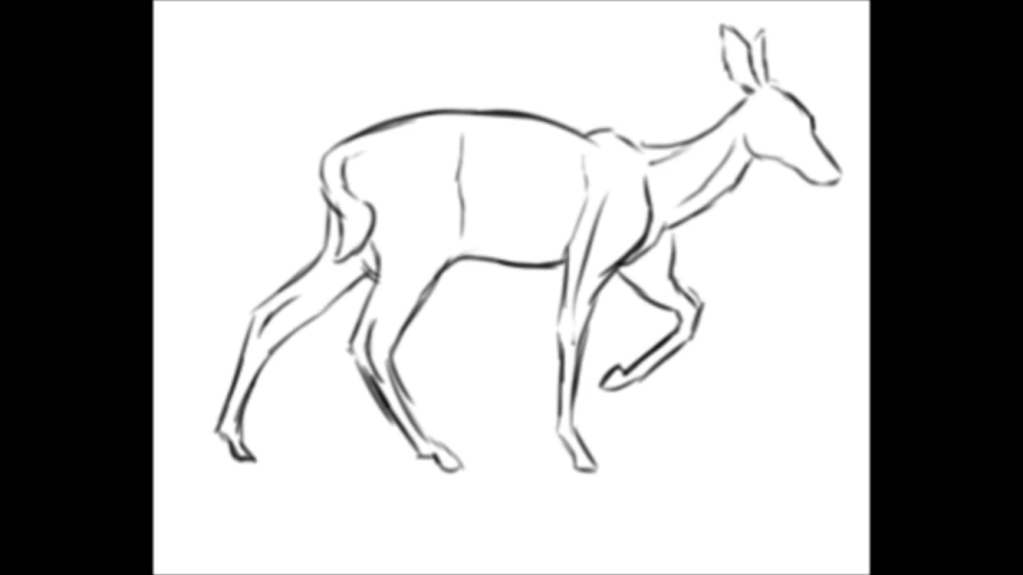
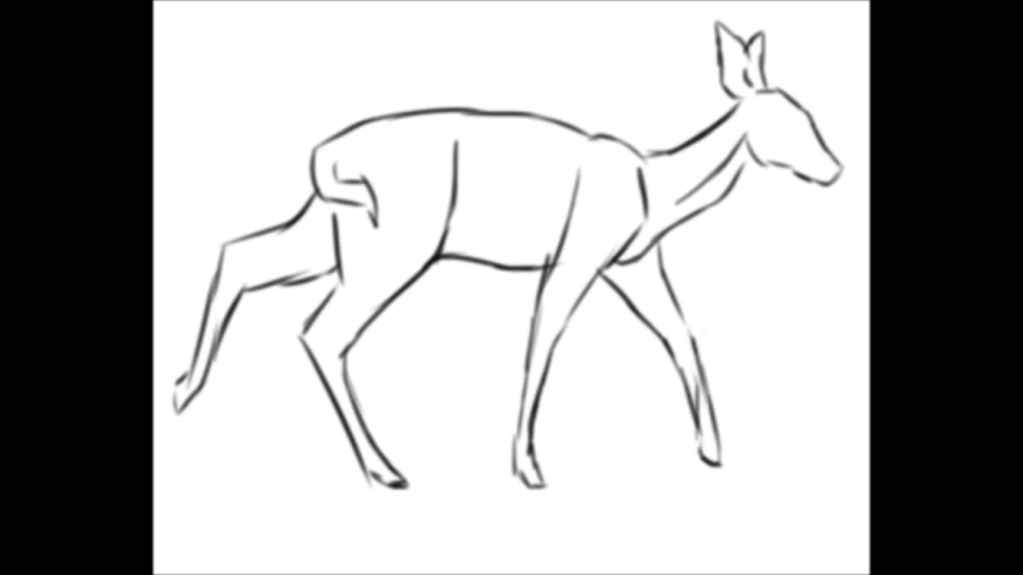

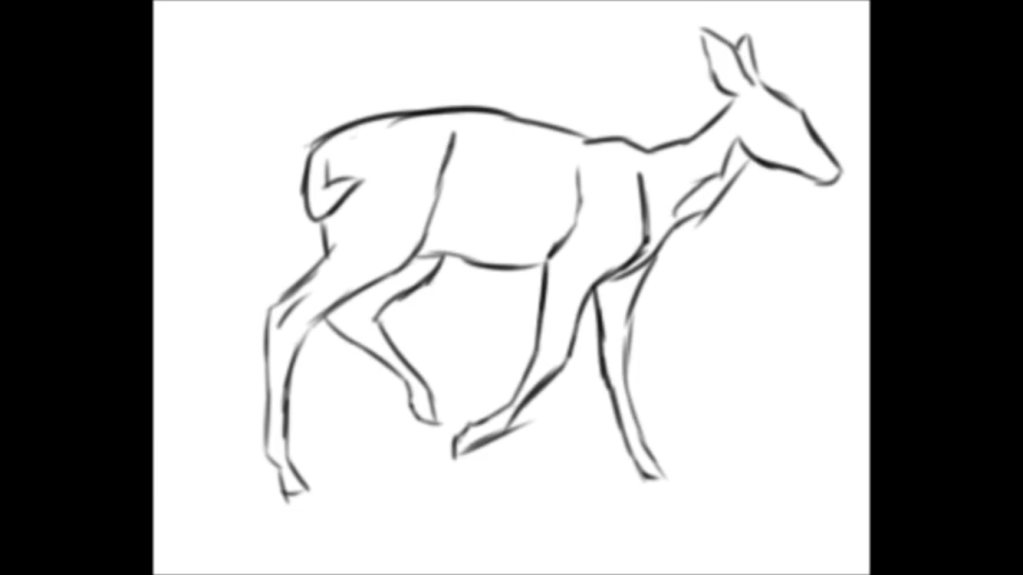
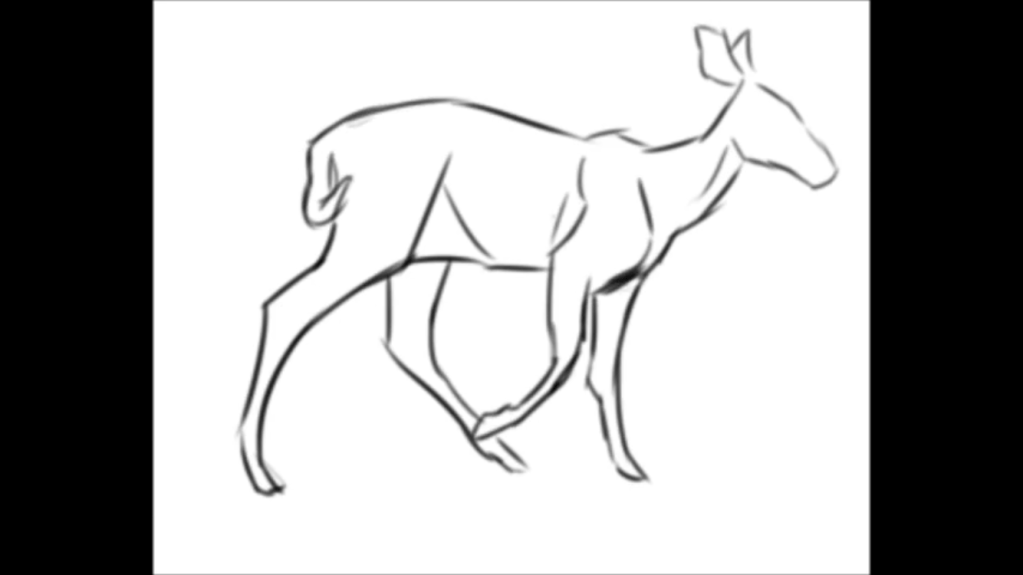
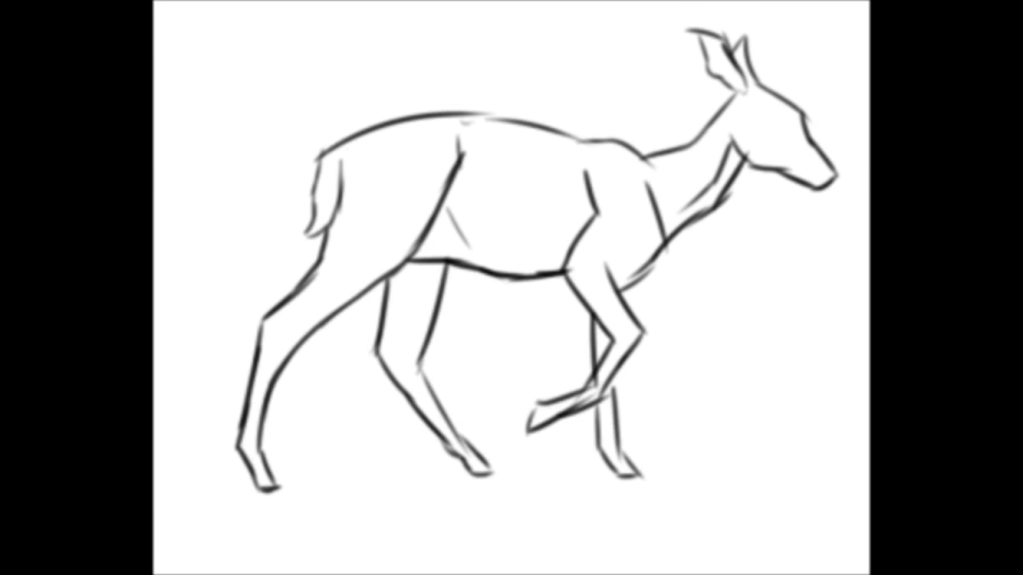
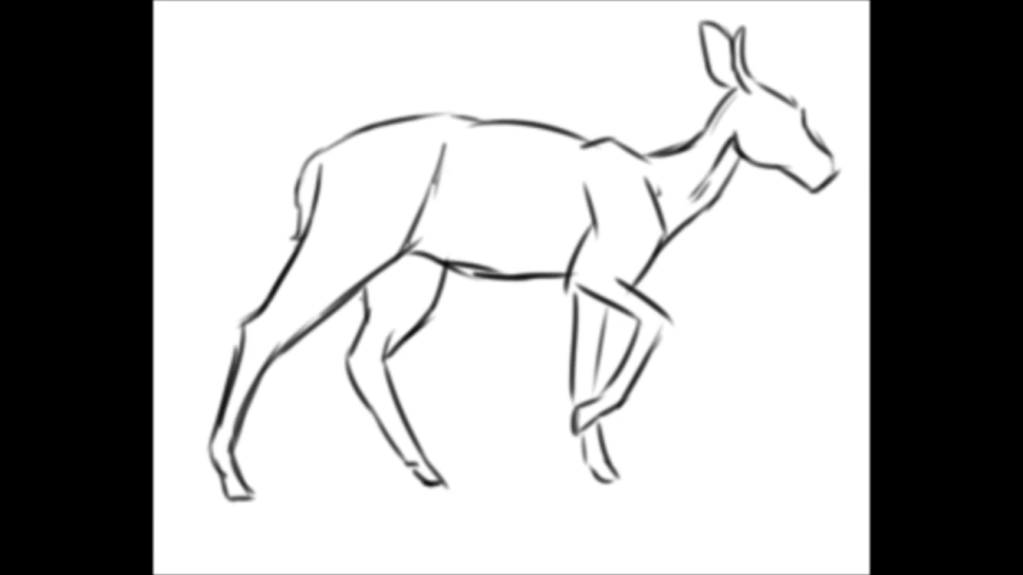
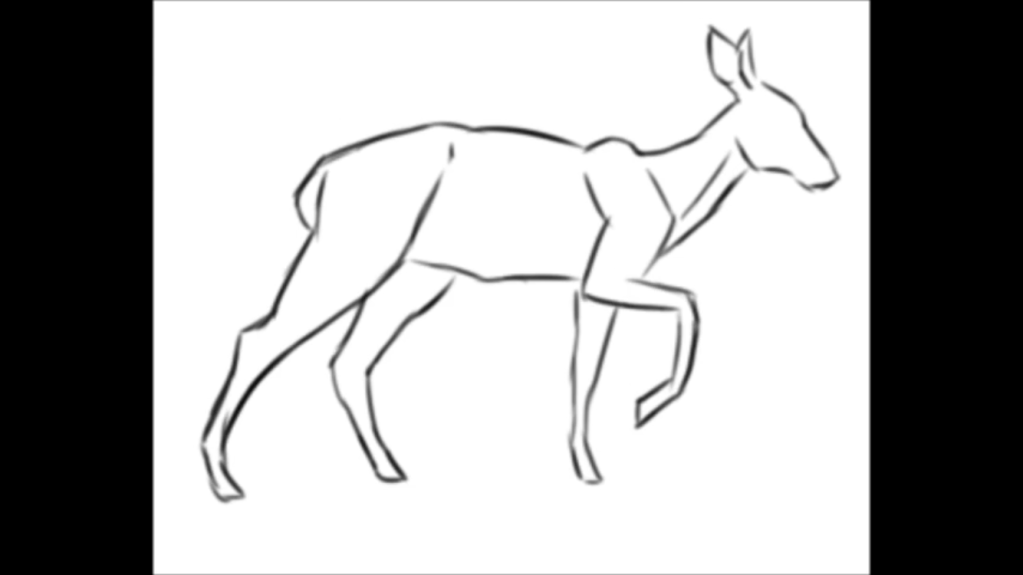
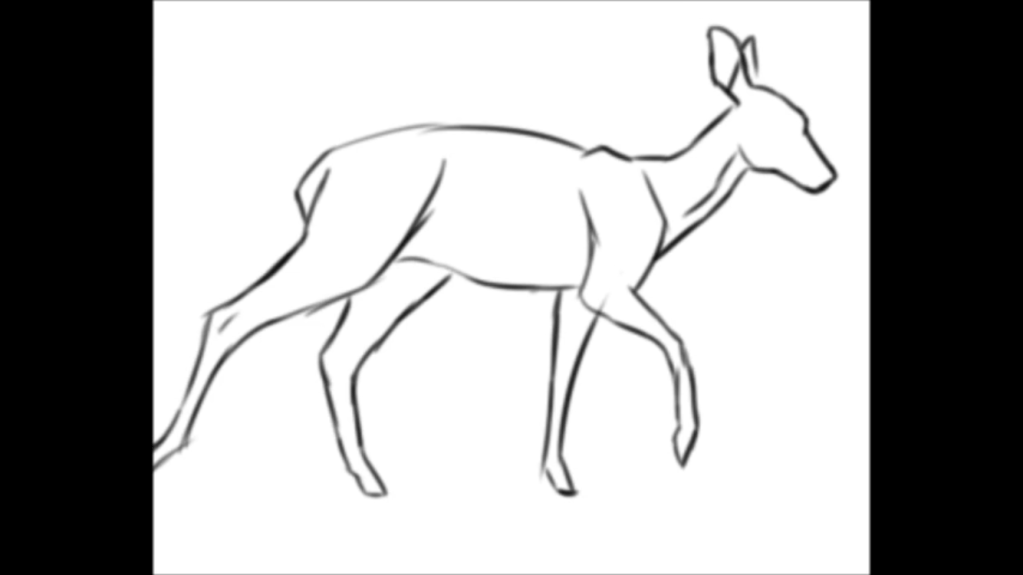
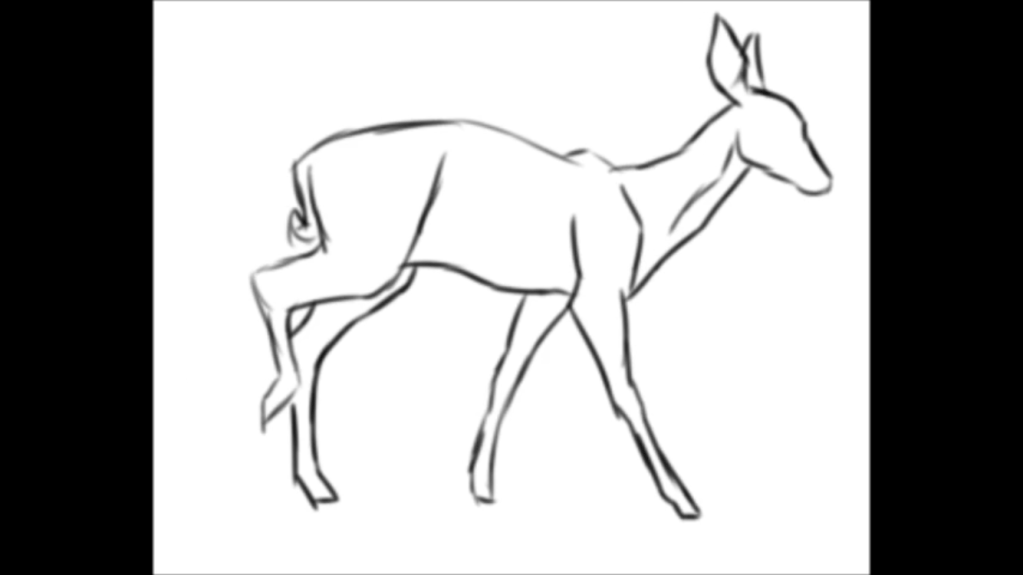
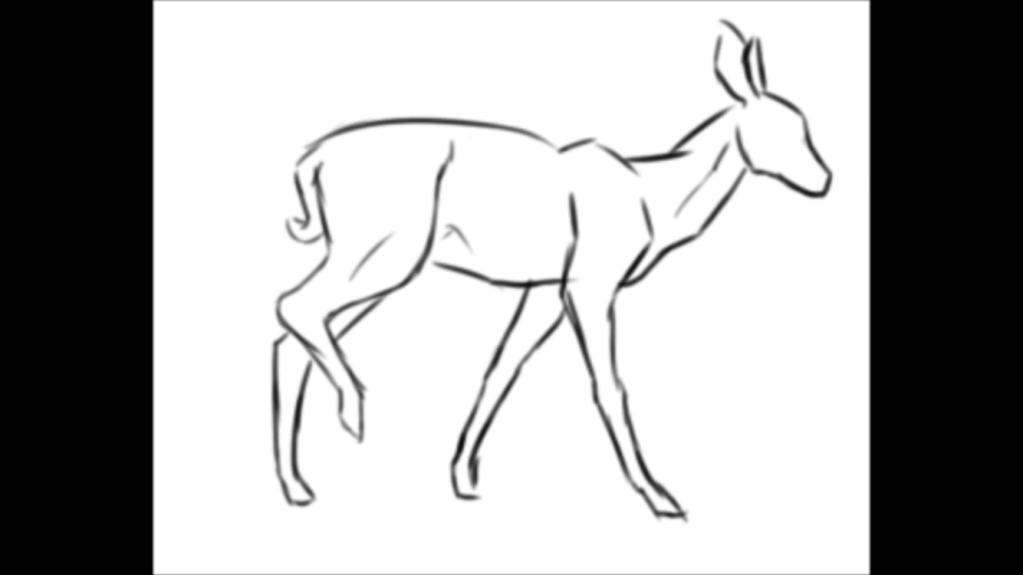
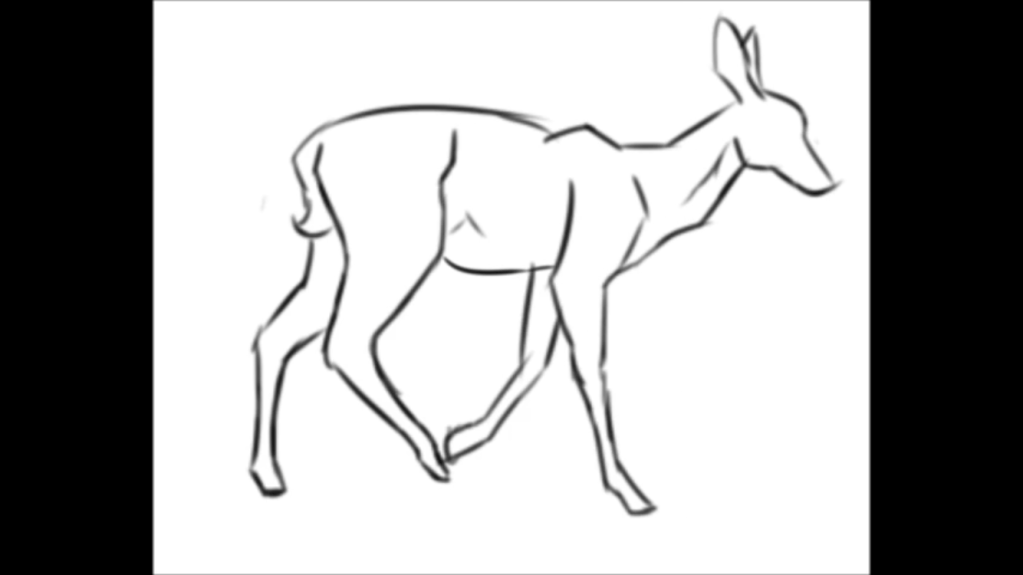
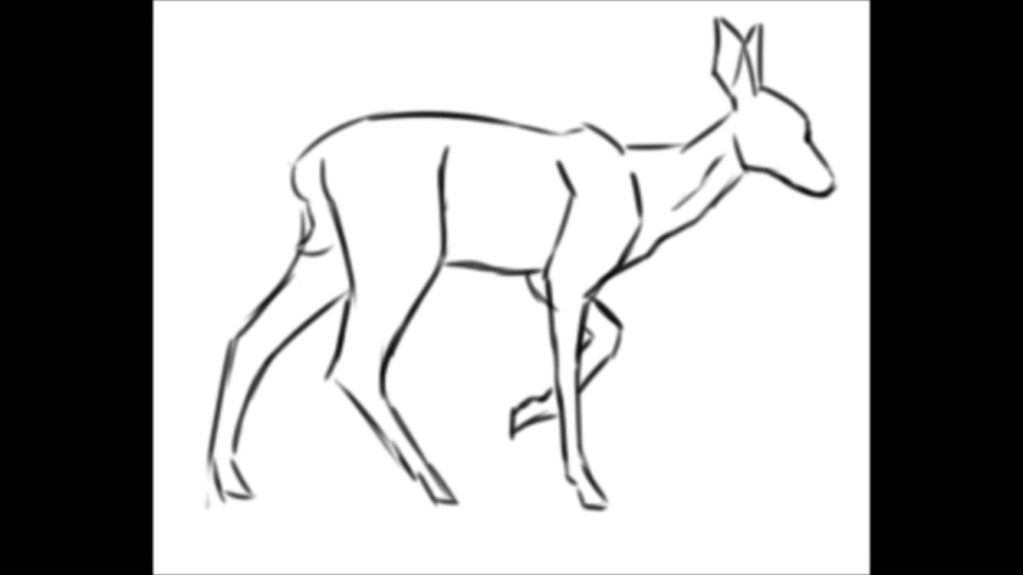
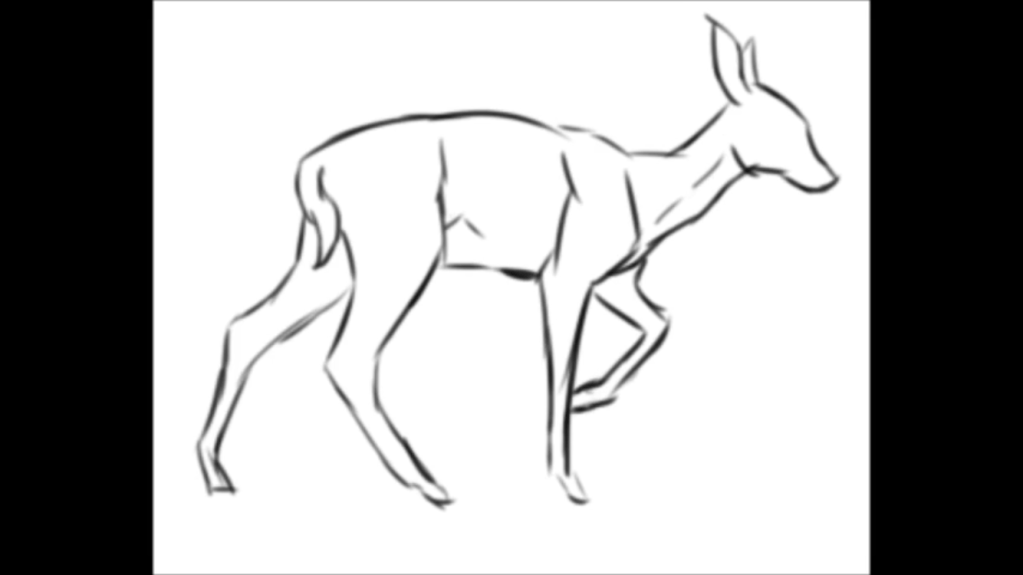
Next, I used the screenshots as reference and drew my own animation frames for the deer walking. I made the canvas resolution 375 x 375 as I was told by Bernardo that this was the resolution the deer’s walking animation should be in.
Initially, I drew the my own animations frames using the screenshots above as reference in Opentoonz but the program crashed on me a few days later. Opentoonz kept refusing to open and crashing before it could so I ended up losing all the frames I had drawn. This meant that I had to redraw everything from scratch in the other program I had – Krita. I had used and animated in Krita before so I didn’t need to familiarise myself with it. Instead, I just began drawing the frames again.
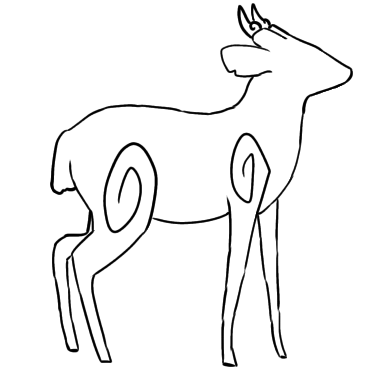
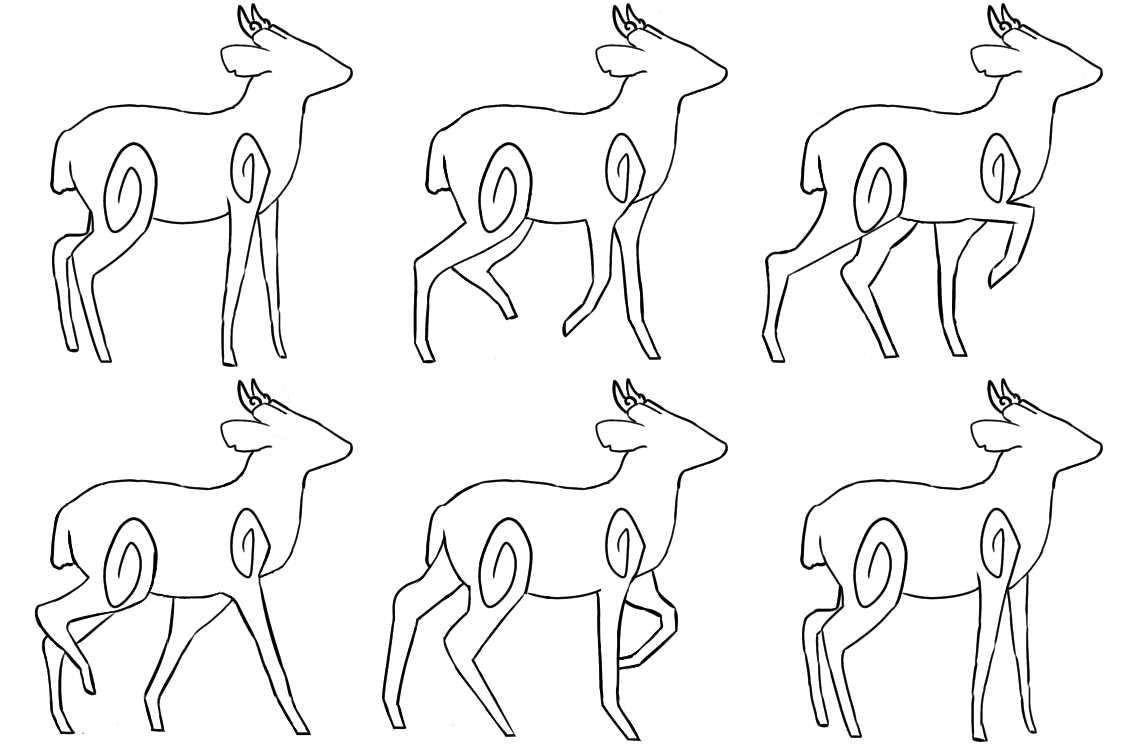
Shown below are the rough animation frames I drew (the first frame was drawn using the image of the deer standing from Shannon’s blog as reference).
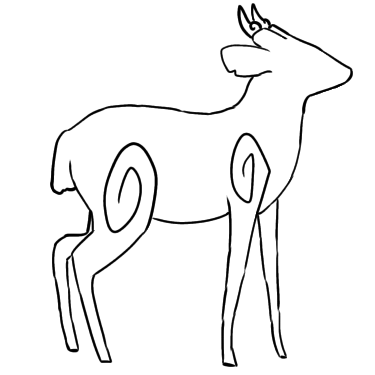
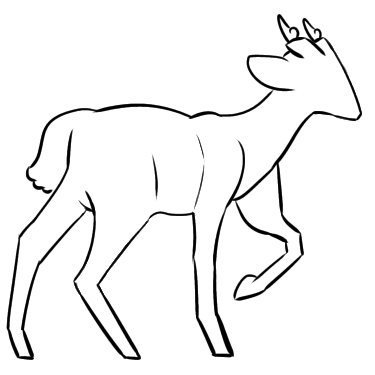
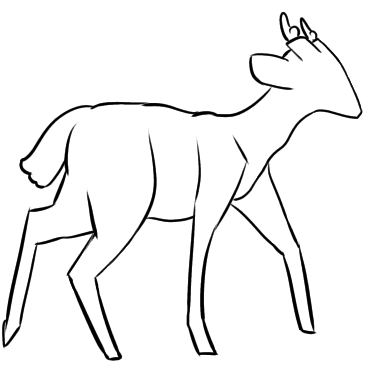
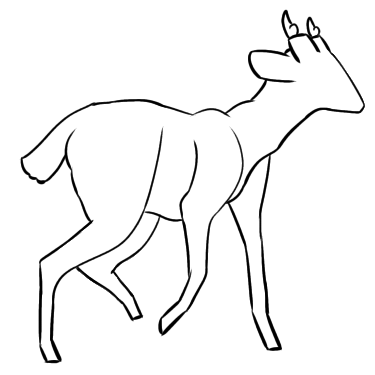
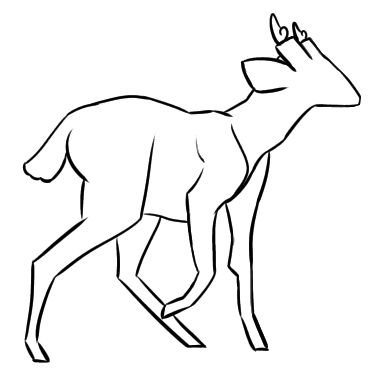
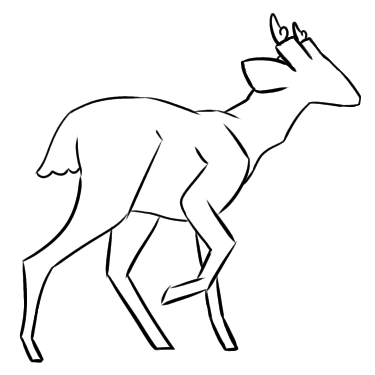
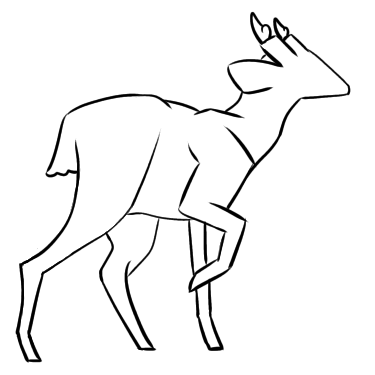
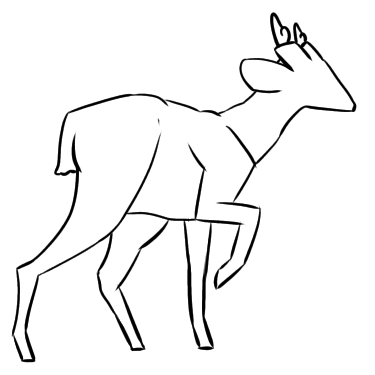
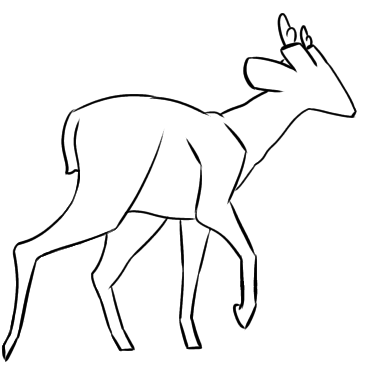
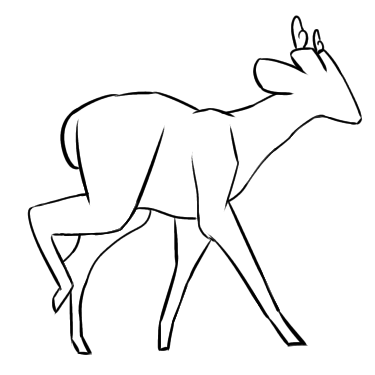
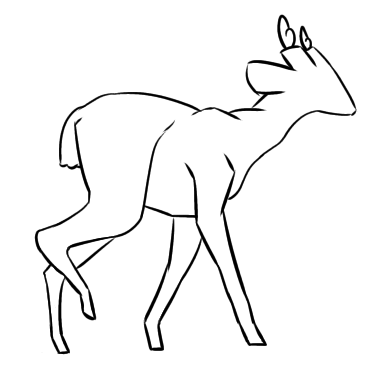
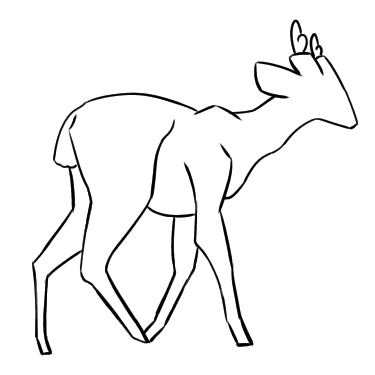
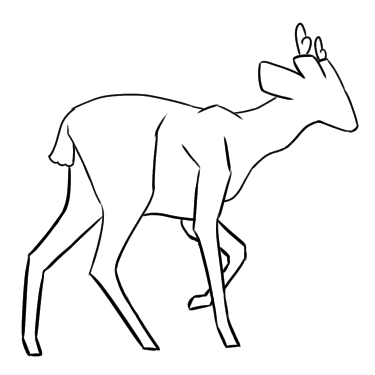
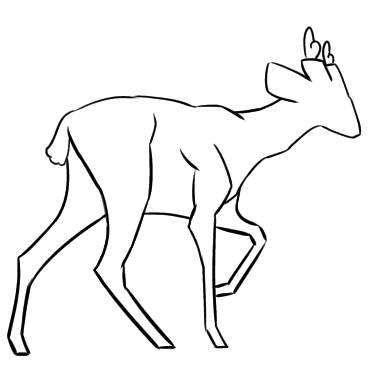
Next, I decided to test out the animation frames by playing them as an animation. The default frame rate in Krita is 24 fps, which was too fast for this animation so I decided to decrease the fps until the animation was playing at a reasonable pace. This frame rate was 12 fps.
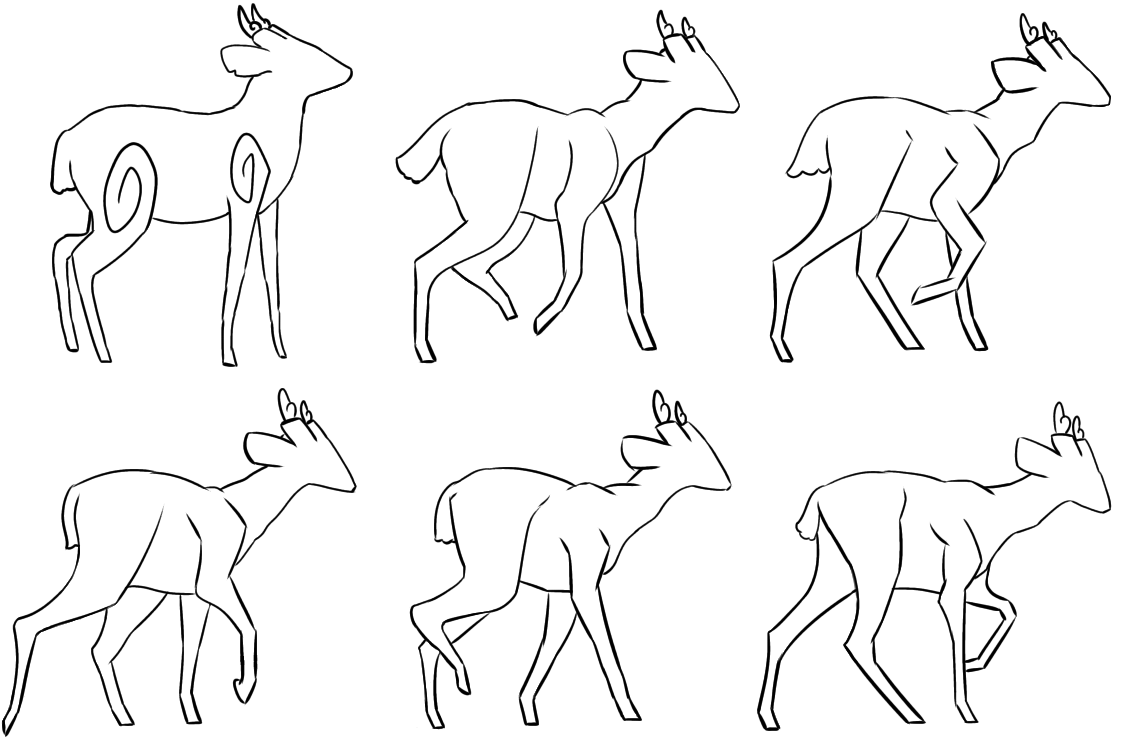
After playing the frames as an animation, I found several issues with the frames and thought of ways to fix them before executing the solutions.
List of issues & solutions
the head and neck don’t move smoothly/the head and neck change sizes throughout the animation – make it so that the head, neck and body remain stationary throughout the animation to make for a more smooth animation – only the legs need to move in order to make the deer walk
the tail changes sizes throughout the animation – make it so that the tail remains stationary throughout the animation to make for a smoother animation – only the legs need to move to make the deer walk
the animation doesn’t loop smoothly – make an extra frame to make for a better transition between the last and first frame
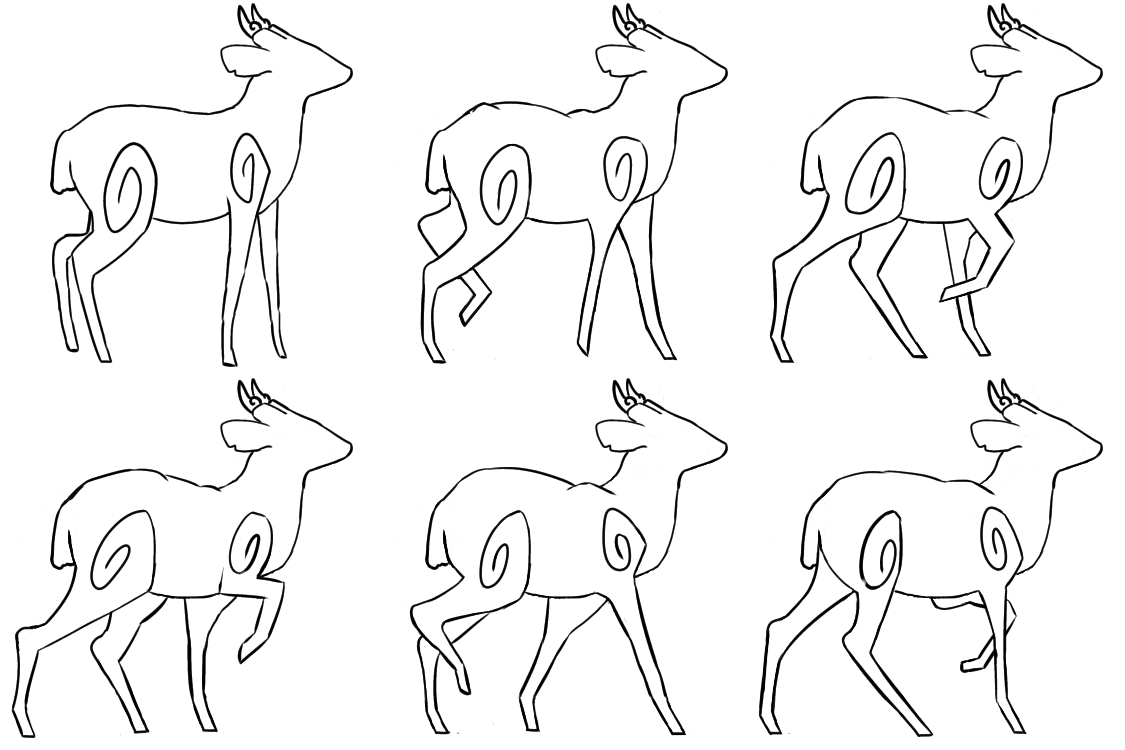
I first decided to execute the first two solutions and redraw the existing animation frames before creating a new frame so that the new frame would have a better foundation to go from.
Shown below are the redrawn animation frames.
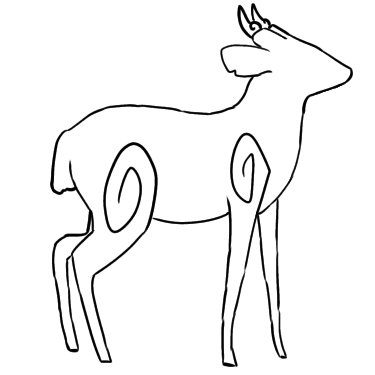

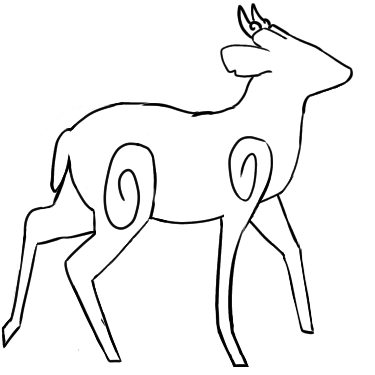
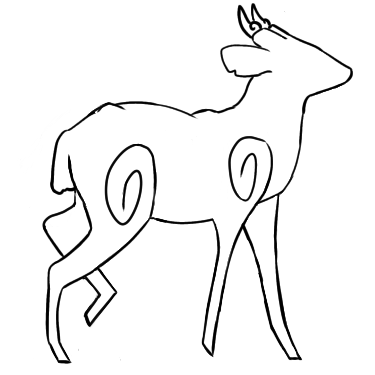
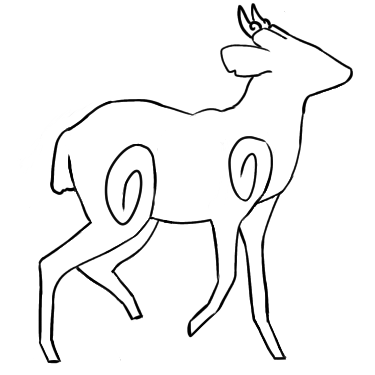
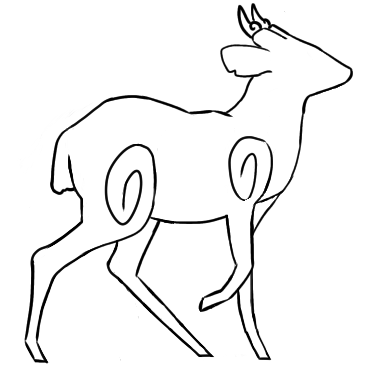
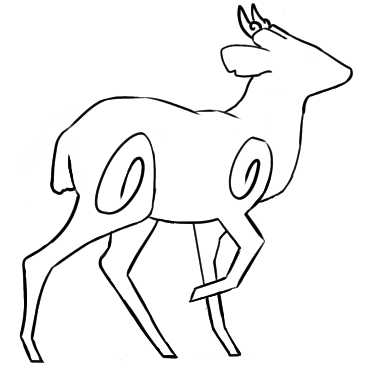
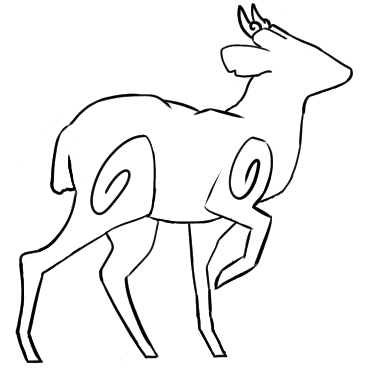
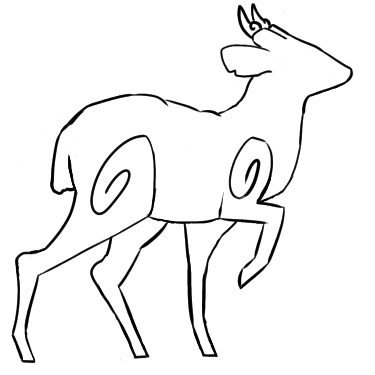
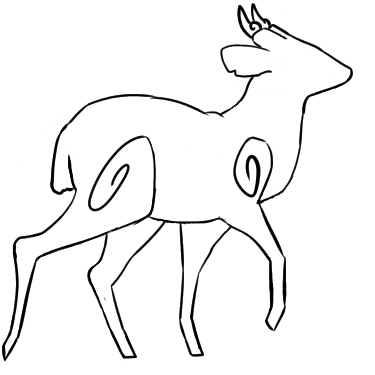
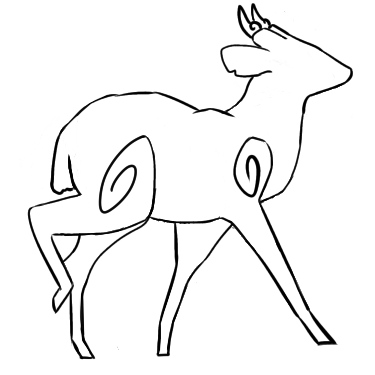
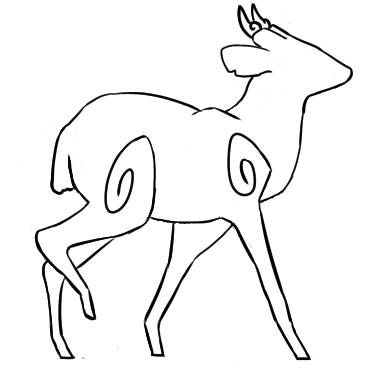

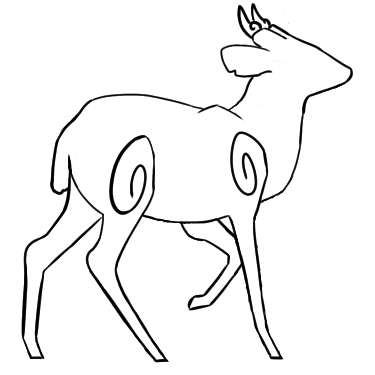
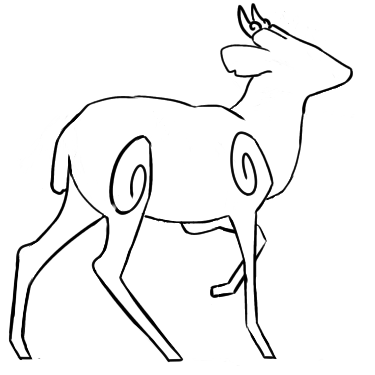
Next, I tested out the new animation frames by playing them at 11 fps (this fps seemed to better suit the walking speed). Shown below is the animation GIF.
After playing all the frames as an animation, I decided to try playing the animation without including the first standing frame to ensure that the rest of the frames can play smoothly and loop successfully (since they are all from the same reference whilst the first frame was based on a different reference).
Shown below is the animation GIF excluding the first frame.
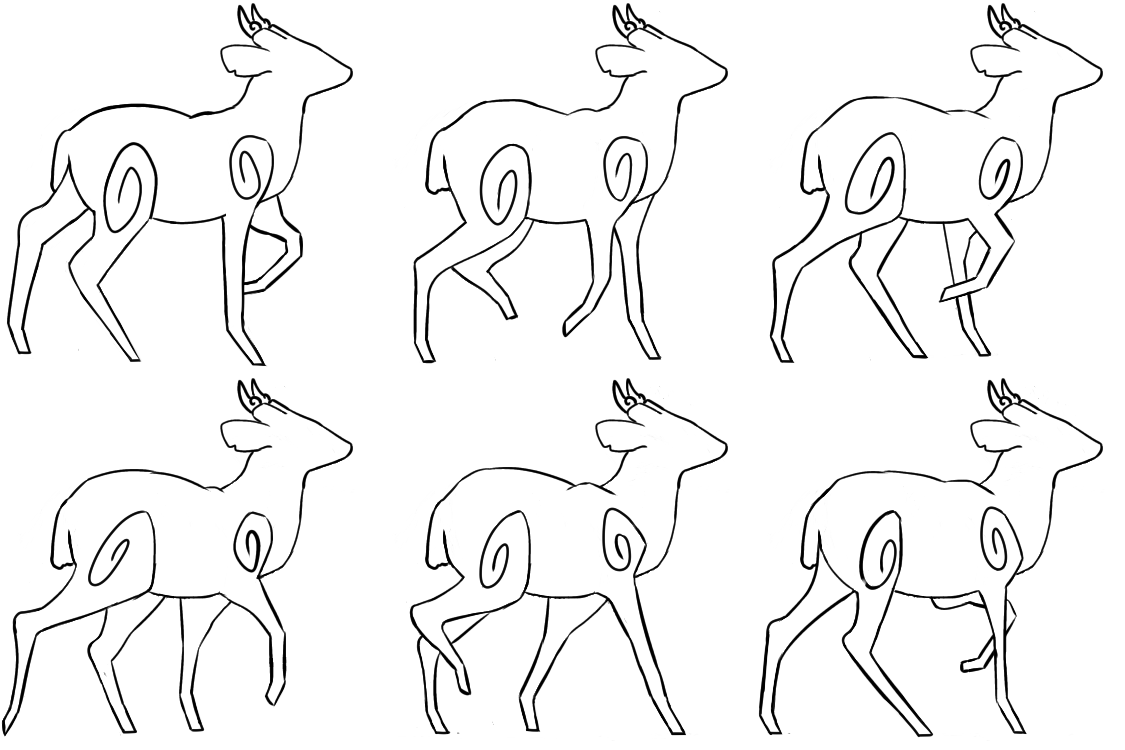
I found that there was another issue with the new frames after looking at the GIFs – the swirls and back don’t move smoothly. Thus, I decided to make the swirls and back stationary as well to make for an even smoother animation.
Shown below are the altered animation frames.
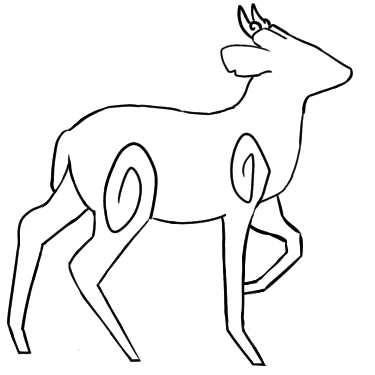

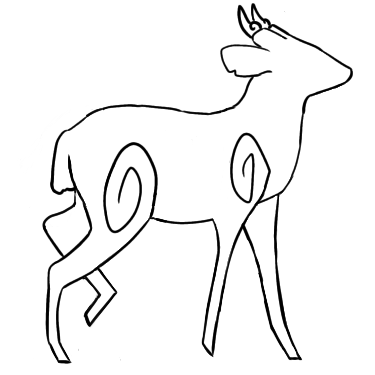
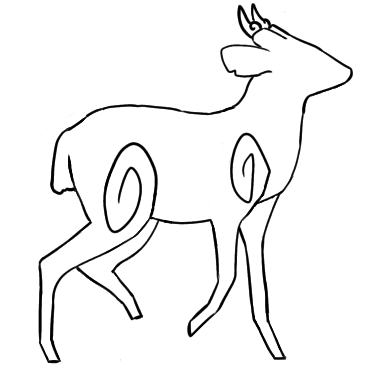
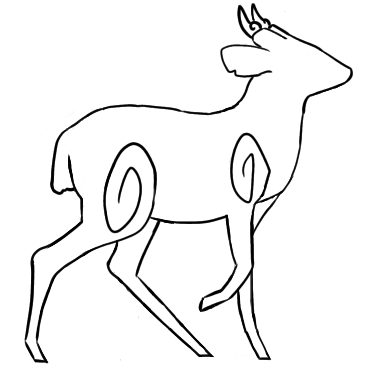
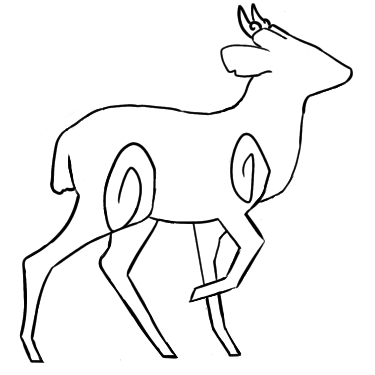
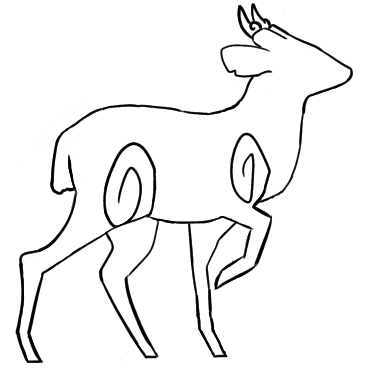
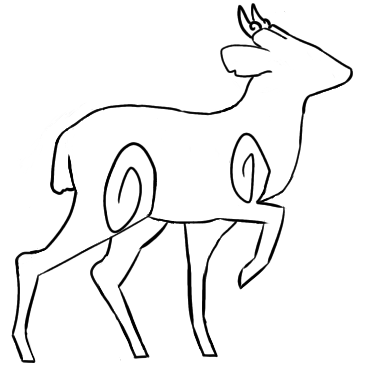
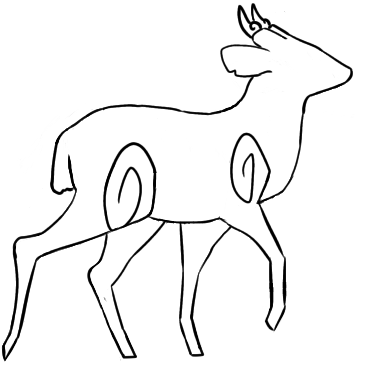
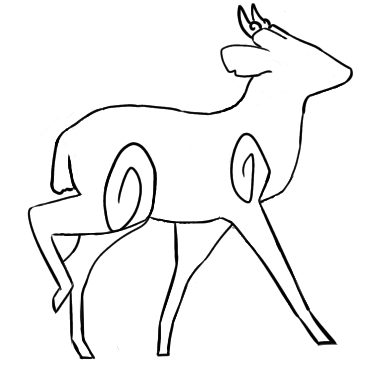
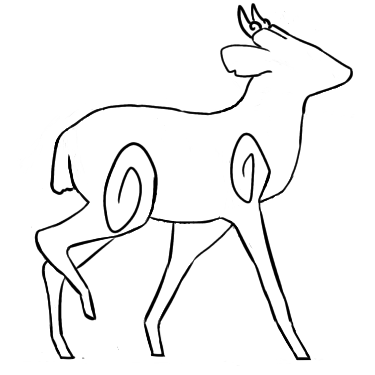
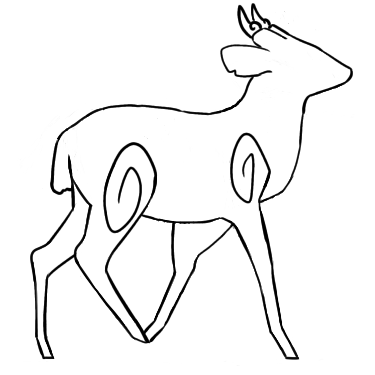
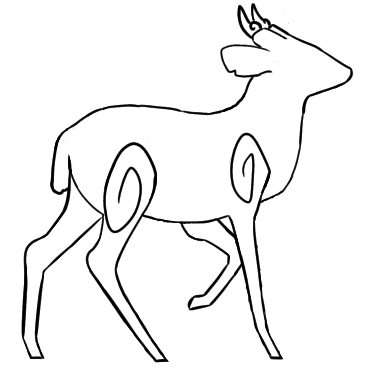
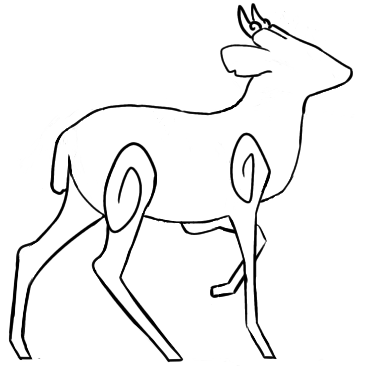
Then, I decided to play the frames as an animation to see if there were any more issues I needed to fix before creating the new frame, which should sit between the first and last frame.

There were two issues I discovered when watching the GIF. The more minor issue was that the frontier back leg touches the deer’s butt in some frames. In order to solve this problem, I decided to redraw the frames where the problem occurs.
However, I decided to tackle the more major issue first as it would be more difficult to solve. The major issue I found with the new animation frames – the back leg’s swirl moves strangely due to the back leg’s movements going high enough to touch it. During the redrawing process, I found that I had to redraw parts of the swirl to accommodate the back leg in some frames. I decided to fix this issue by either reshaping the swirl or reshaping the back leg in certain frames. In the end, I tested out several different solutions.
The first solution I tested out was changing the swirl’s shape in certain frames so that the back leg doesn’t touch the swirl. This would prevent the swirl from looking as if the leg is causing its movements. Shown below are the fixed frames and the GIF showcasing the frames as an animation.
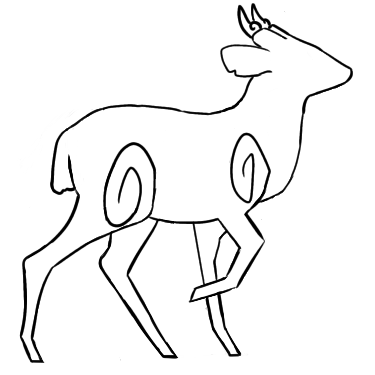
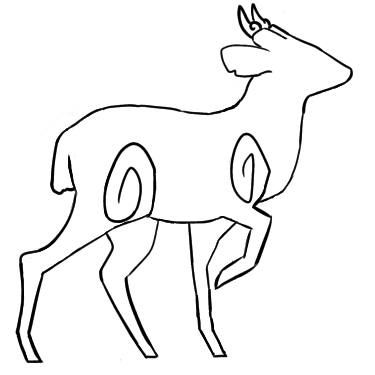
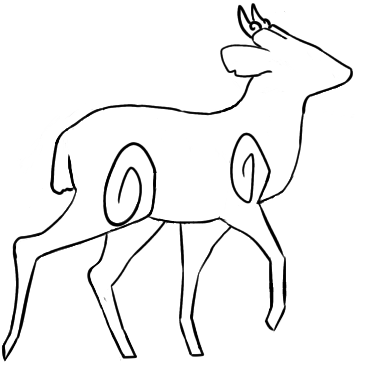
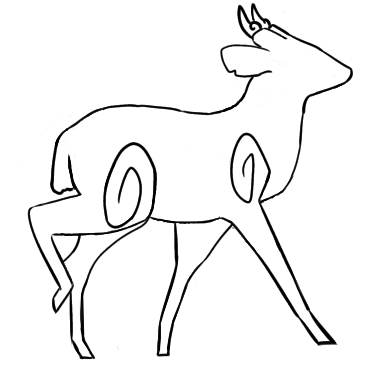

This solution din’t seem to solve the issue since the swirl still moves strangely. Therefore, I decided to try making the swirl the same shape as the other frames to ensure it doesn’t move strangely, and alter the back leg’s shape to accommodate the swirl instead.
Shown below are the fixed frames and the frames as a GIF.
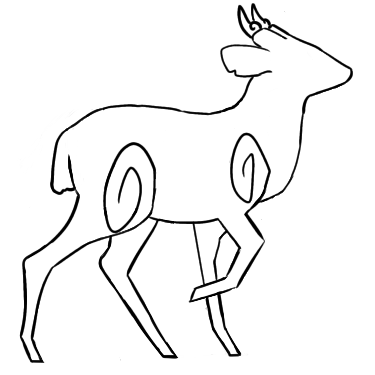
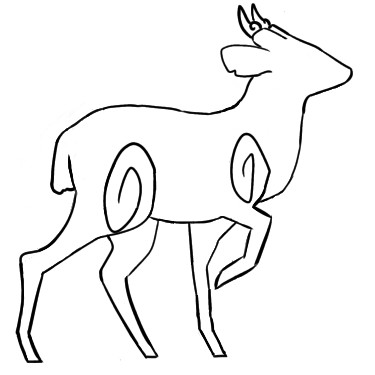
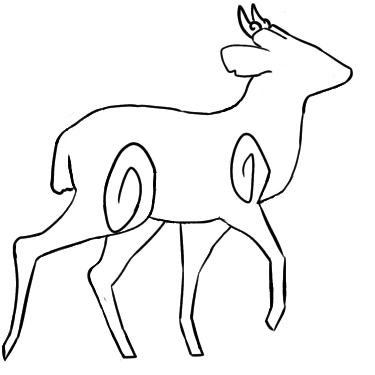
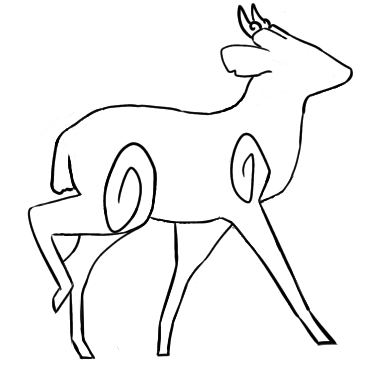
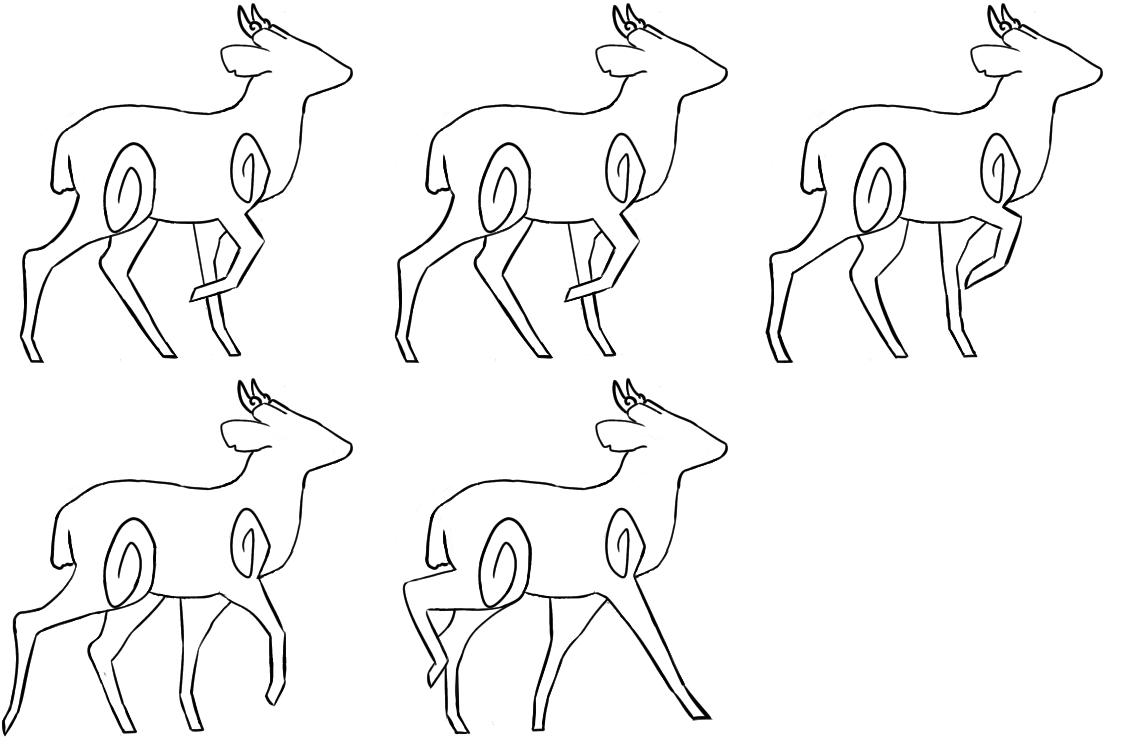
The new frames seem to solve the issue – the swirl no longer moves strangely. However, I did find that the back-most leg in the first frame above (uppermost left) wasn’t the same shape as in the other frames. Thus, I decided to also fix that. Shown below is the old frame (left) and the altered frame (right).
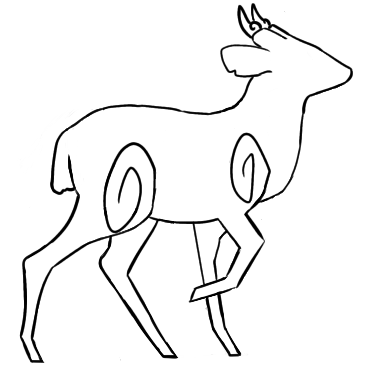
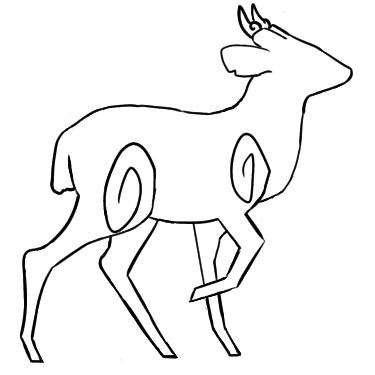
After solving this issue, I moved onto solving the other issue by redrawing the frames where the frontier back leg touches the deer’s butt. Shown below are the altered frames.
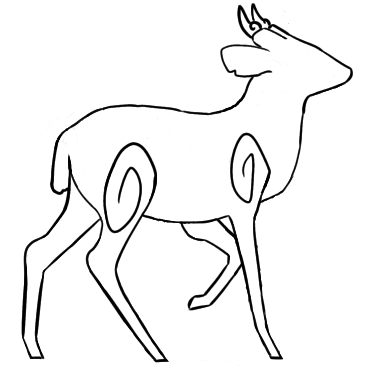

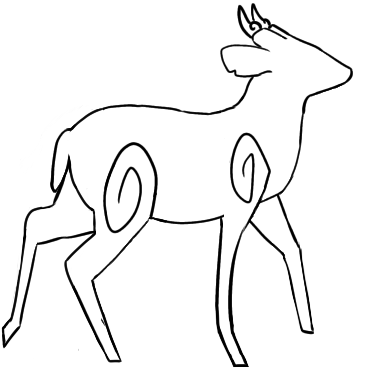
After solving this issue, I drew a new frame to make the transition between the first and final frame smoother. I used the third frame (shown below on the left) as a reference as it closely resembled the first frame – its legs are only slightly different to the first frame’s. I also kept in mind the first and last frame whilst designing the new frame. Shown below (on the right) is the new frame. I only needed to change the frontier back leg’s position as the other legs were in good positions for acting as a transition between the first and last frame.
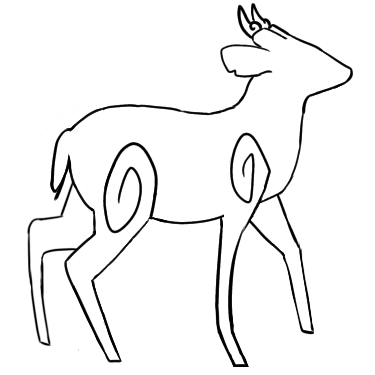
Shown below are all the final frames and a GIF showcasing the frames as an animation.
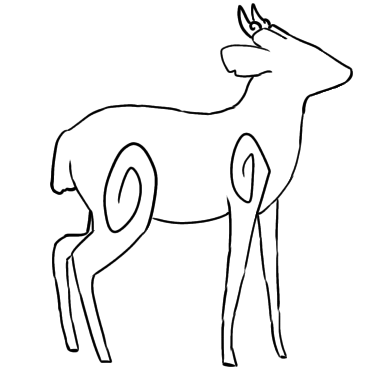
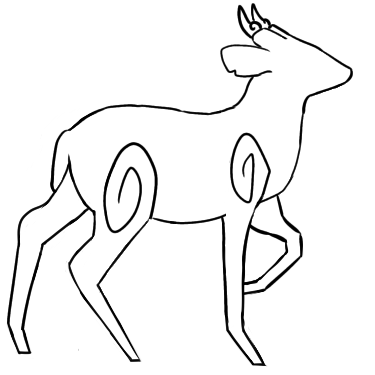
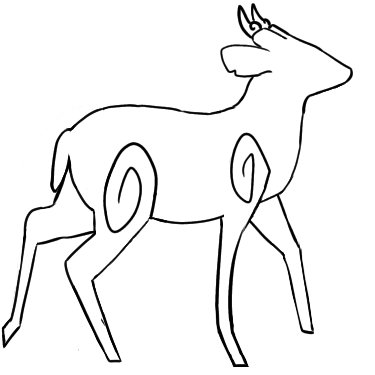
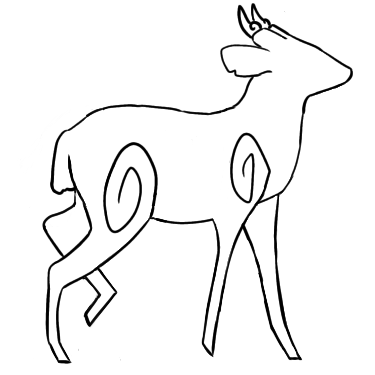
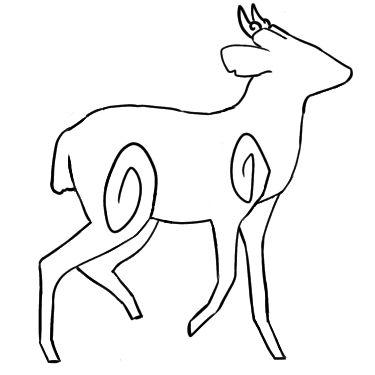
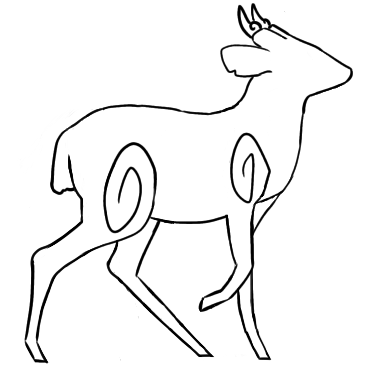
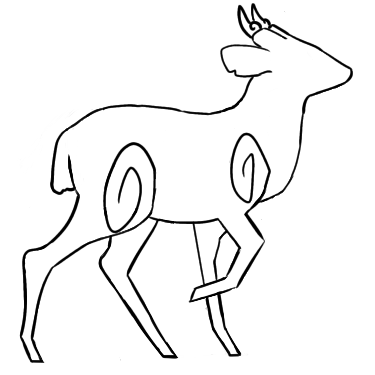
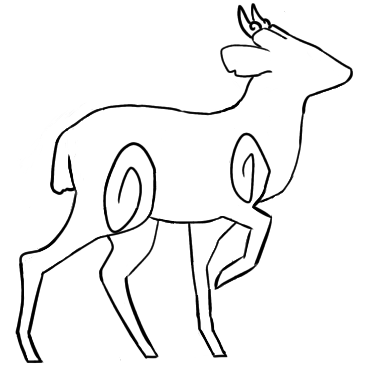
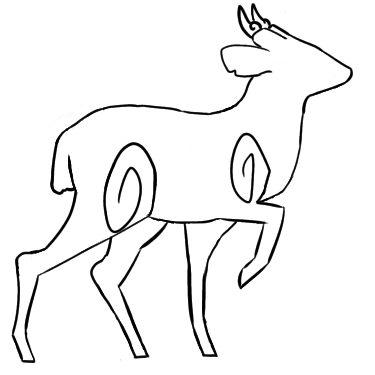
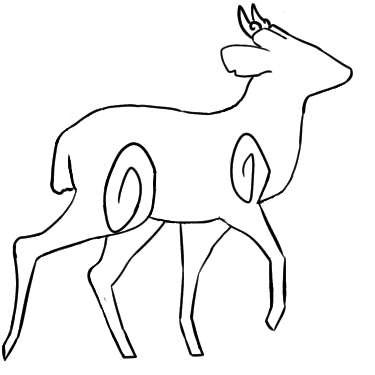
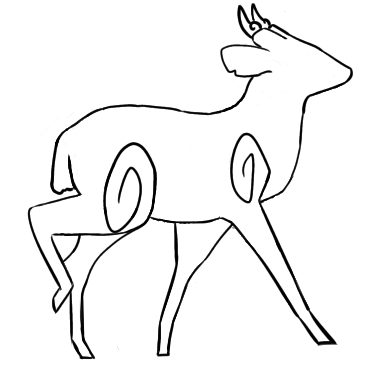
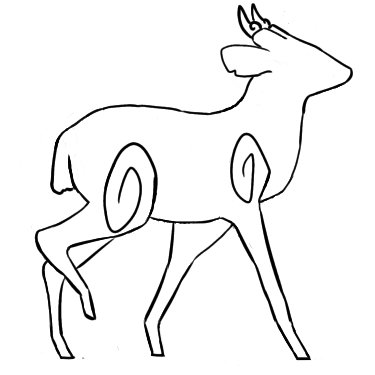
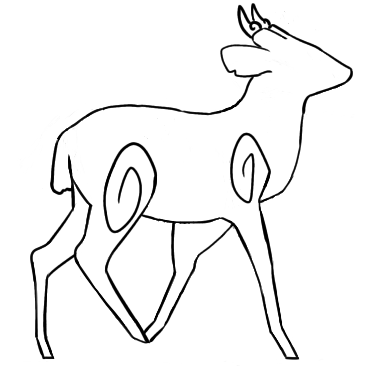
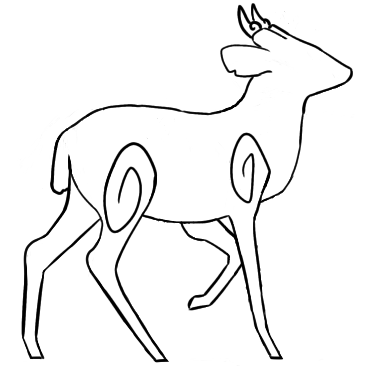
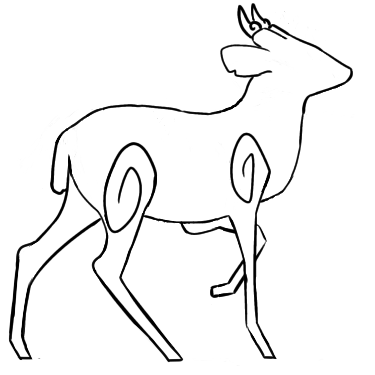
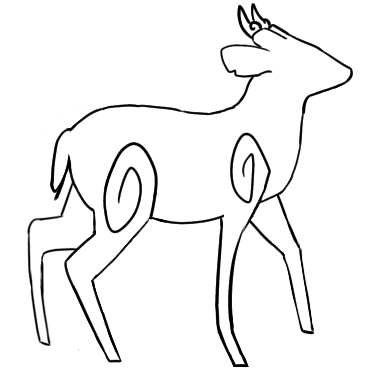
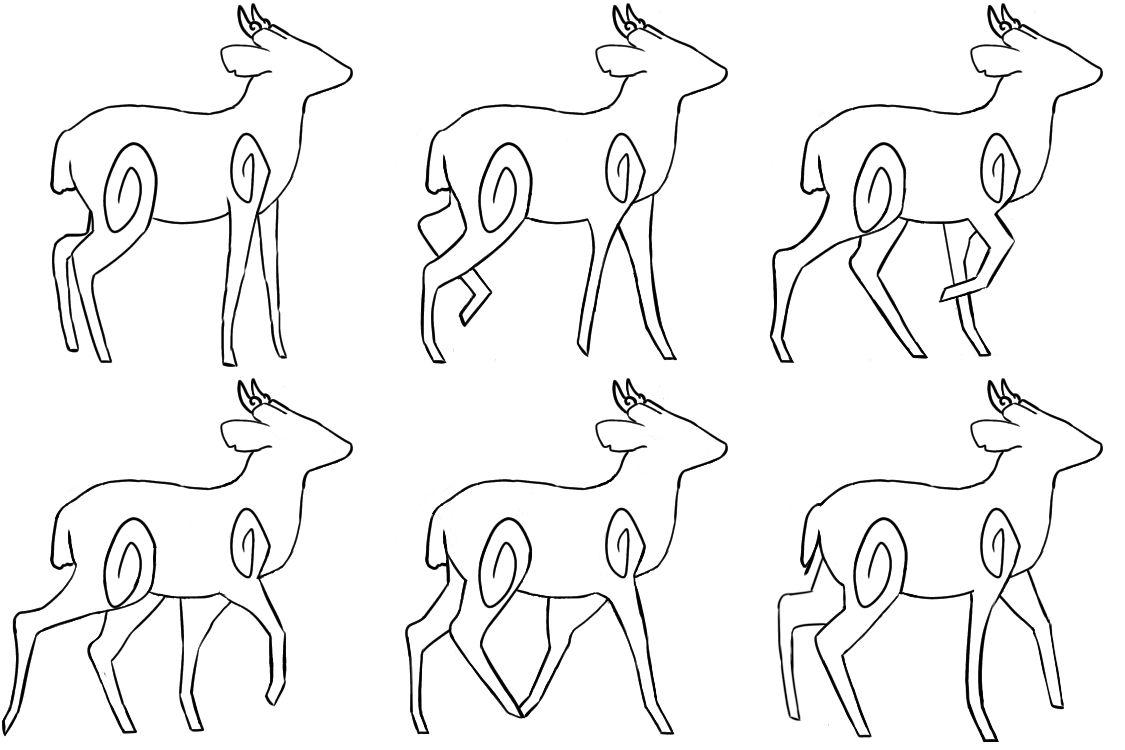
After playing the frames as an animation, I saw that the animation still failed to loop smoothly despite the adding new frame. I deduced that I needed to reorder the frames as opposed to creating more/changing transition frames.
I began by scrutinising the transitions between each frame in the current order and found that the last few frames and the first few frames consisted of the deer’s back-most back leg moving outwards, then inwards into the first frame, and then outwards again. All this occurs in a short period of time, which prevents the animation from looping smoothly.
In order to remedy this, I moved some of the frames around to prevent the back-most back leg from moving so unnaturally.
First, I tried moving the 2nd frame so that it occurred just before the last frame. Then, I tested out the new frame order by playing them as an animation. The resulting GIF is below.

There still seemed to be an issue with the animation looping smoothly so I decided to look at the frame order again. I decided to try repeating the first frame twice after the last frame occurs as I thought the issue might be that the animation doesn’t show the deer standing still clearly enough. Then, I tested out the new frame order by playing them as an animation. The resulting GIF is shown below.
The new frame order seems to have solved the issue as the animation now loops fine – it showcases the deer executing one walk cycle before stopping, and then beginning to walk again. I decided to move on and draw out the final frames before trying to make a continuous walk loop. For now, I was satisfied with being able to create a smooth transition between the deer walking and the deer stopping in case the game wanted one. Doing so also helped me make sure that the frames I had drawn out so far were capable of making a walk loop.
Drawing the Coloured Frames
I decided to use the image from Shannon’s blog of the deer standing as the first frame. I had to shrink it down first as its original resolution was too large – I used the outline I had drawn for the first frame as a guide.
Next, I duplicated the first frame and used it as a basis for the second frame. I also continued using the outlines I had drawn as a guide when altering the duplicated first frame so that it matched the second frame’s outline. When I had finished drawing the second frame, I duplicated it so that I could use it as a basis for the third frame. I continued this process until I was done drawing out all the frames.
During the process, I found that in certain frames, the two back legs seem to stay on the ground for too long – this made the deer look as if they were dragging their back legs instead of lifting them up. I remedied this issue by altering certain frames so that the back legs gradually became higher off the ground instead of staying on the ground/at the same height.
Shown below are the new frames in their animation order and the resulting GIF.
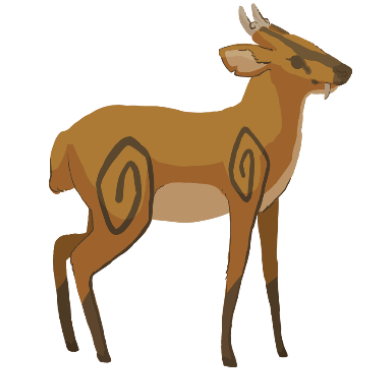
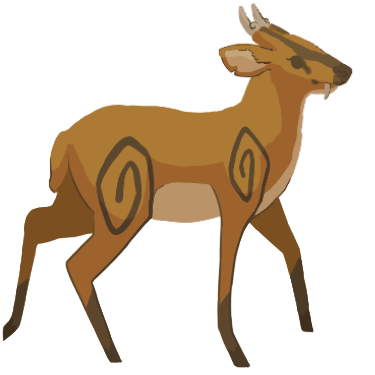
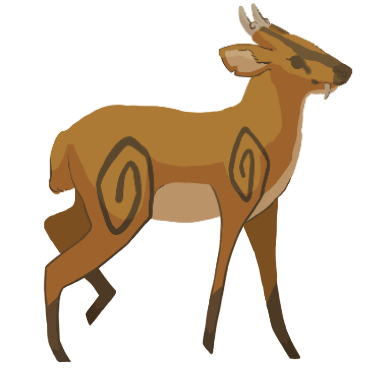
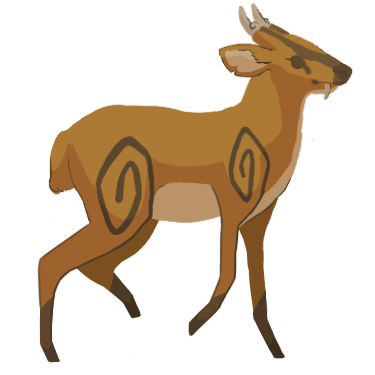
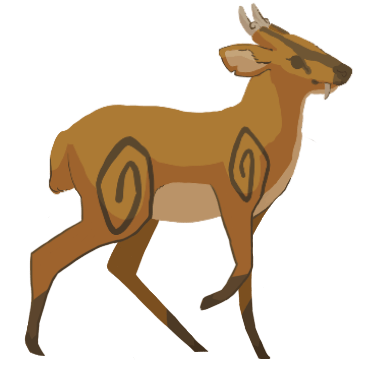
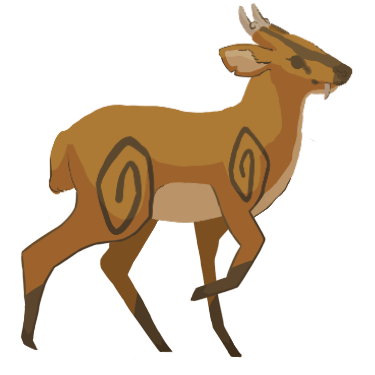

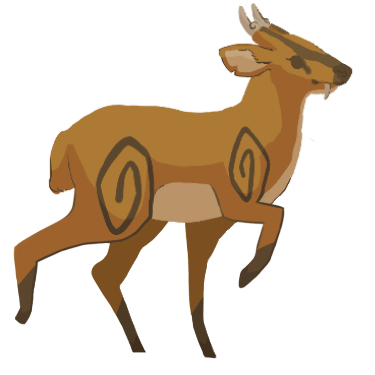
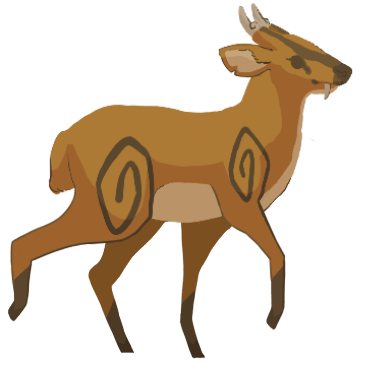

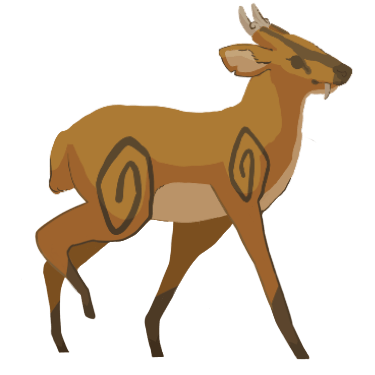
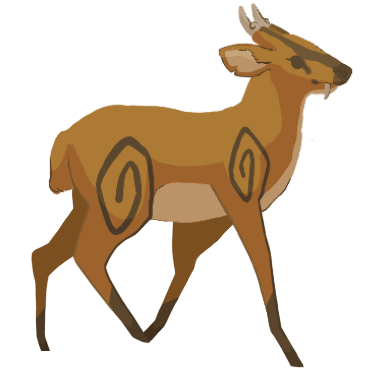
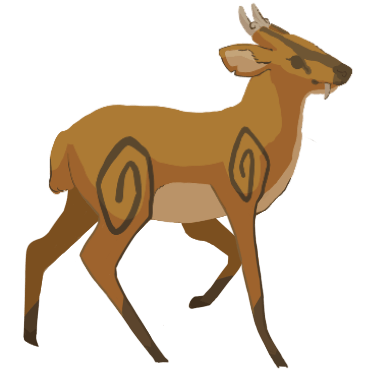
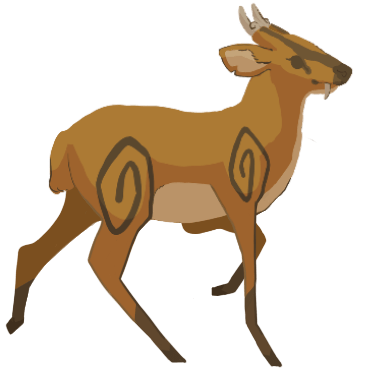
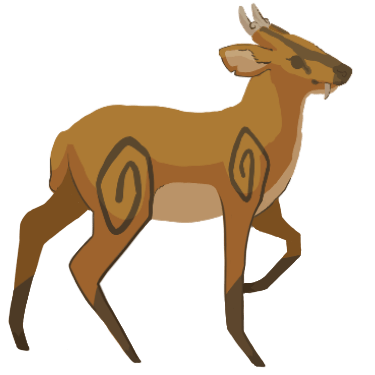
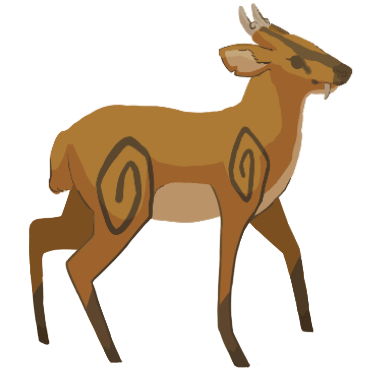
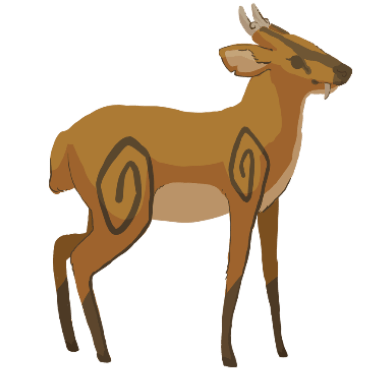
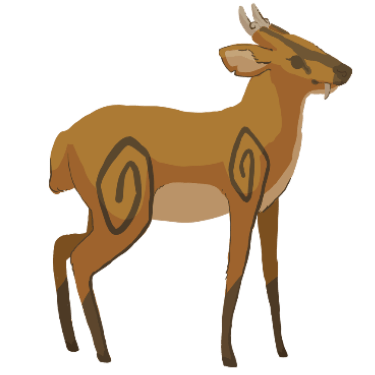
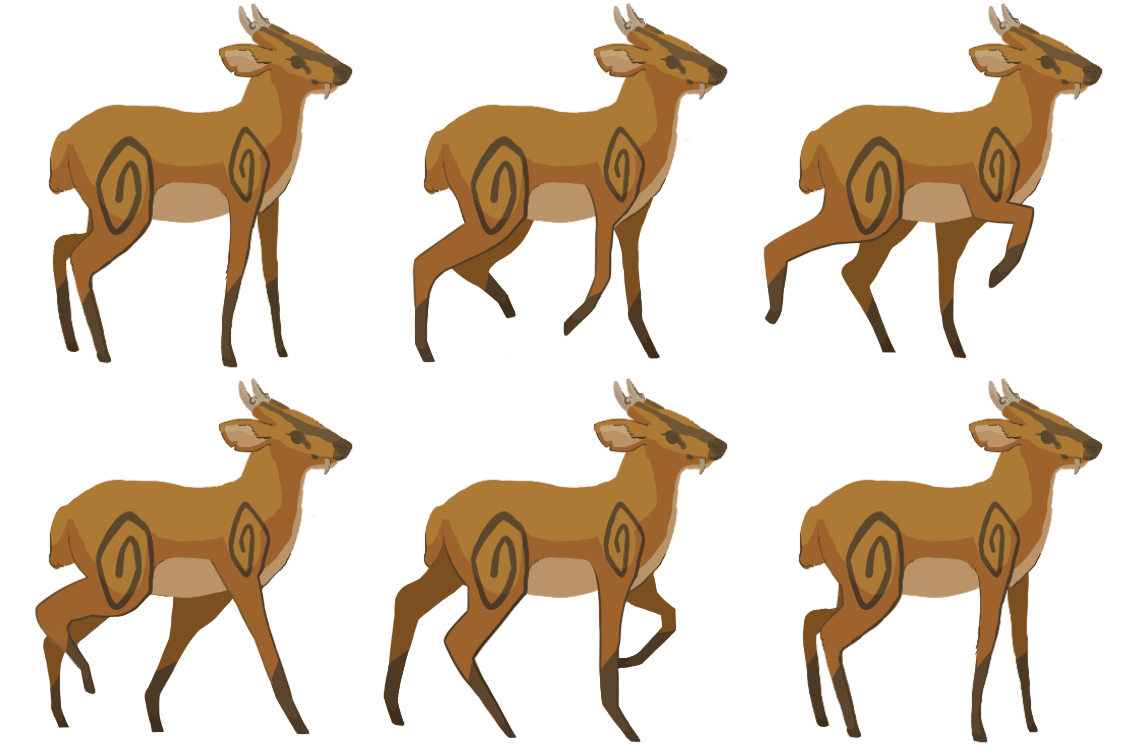
When I looked more closely at the animation, I noticed that the tail was being covered by the back-most back leg. This shouldn’t be occurring since the back-most back leg should be behind the tail – not covering it. I decided to redraw the tail in certain frames so that it covers the leg. Shown below are the altered frames.
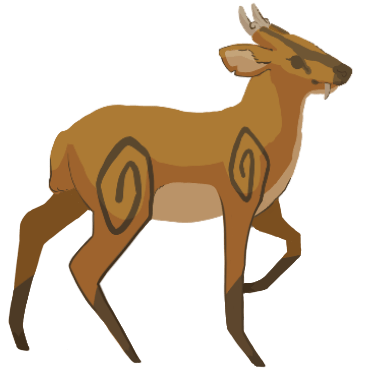
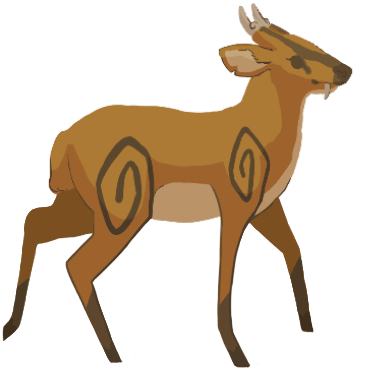
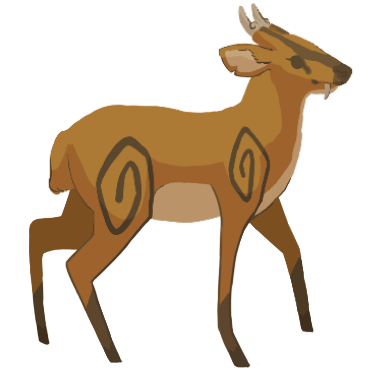
Another issue I found with the new animation was that the back-most back leg seemed to move in a peculiar way – it would bend forwards, then bend backwards in the next frame. I resolved this issue by redrawing the leg in the 15th frame (shown above on the left) so that it would only slightly bend forward to make for a smoother transition into the 16th frame. Shown below is the altered frame.
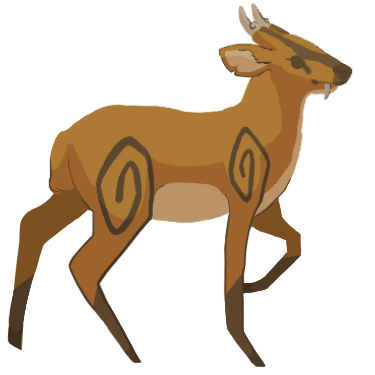
After replacing the 15th frame with the newly altered one, I played the frames as an animation again but found that the back-most back leg still moved strangely. I decided that the issue might be the direction the leg is bent in so I changed it by making the leg slightly backwards. Shown below is the altered frame.
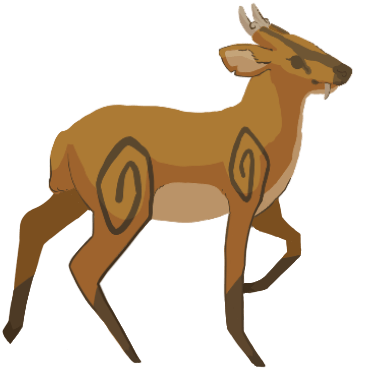
After replacing the 15th frame with the new one, I played the frames as an animation once again and found that the back leg moved more smoothly now. Shown below is the GIF.
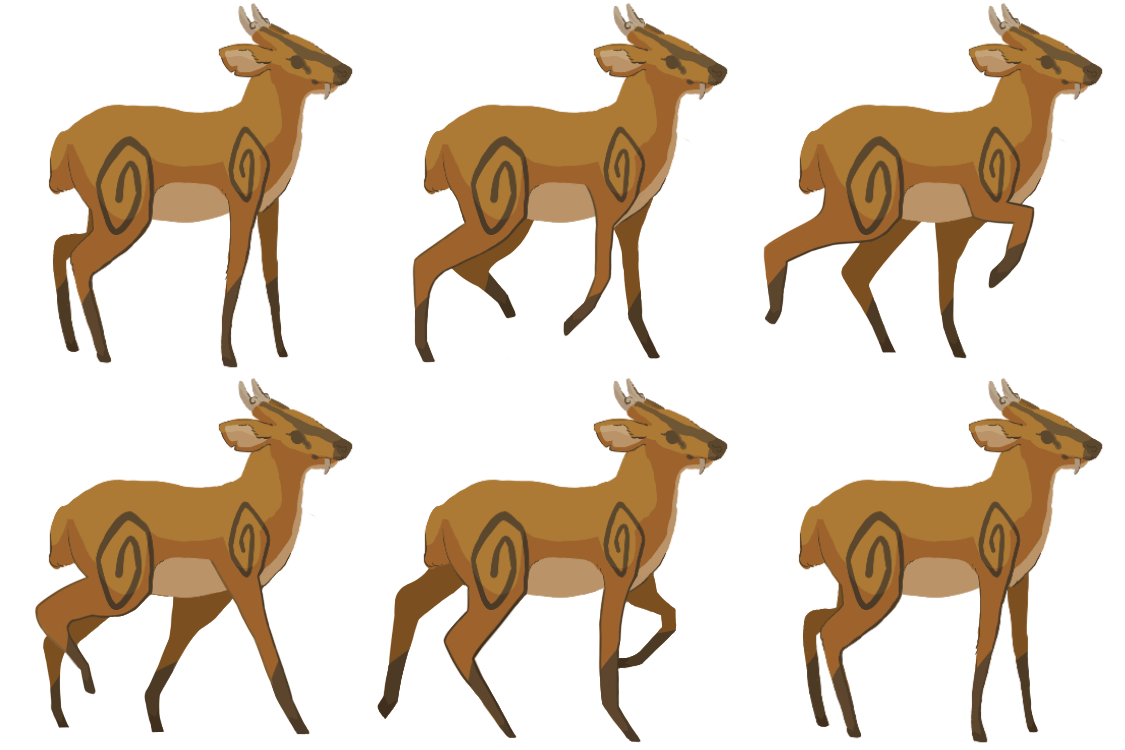
However, I had discovered another issue with the animation now that the tail and back leg weren’t distracting me. I found that the belly moved unnaturally throughout the animation due to the frontier front leg’s movements. In order to remedy this issue, I decided to alter all the frames so that the belly didn’t move. I used the first frame’s belly as a guide and changed all the other frames’ bellies so that they matched the first frame’s.
Shown below are the new frames and the resulting GIF.
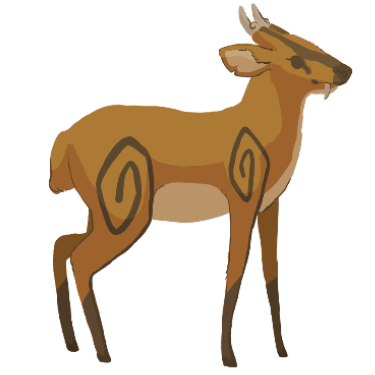
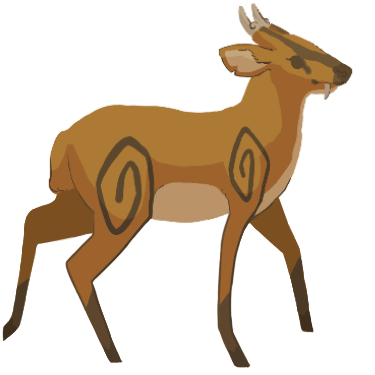
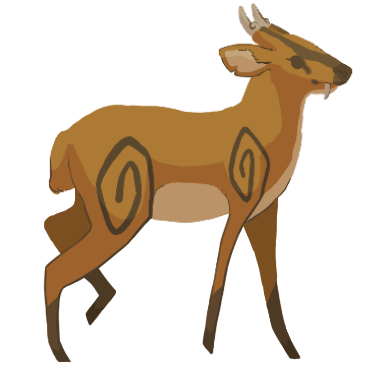
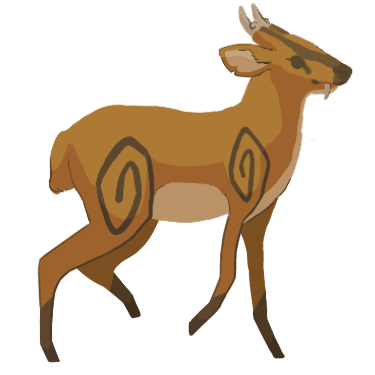
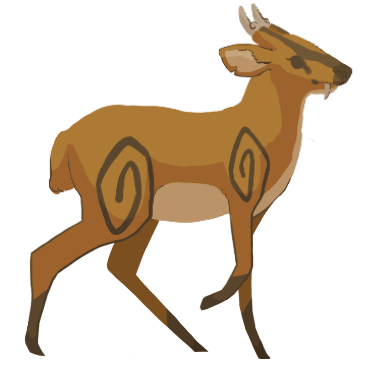

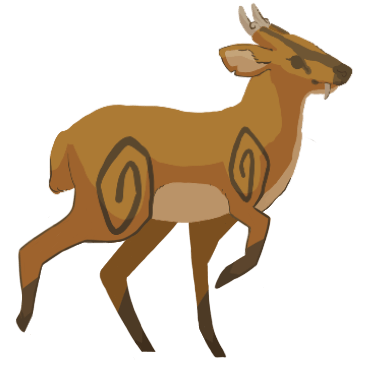
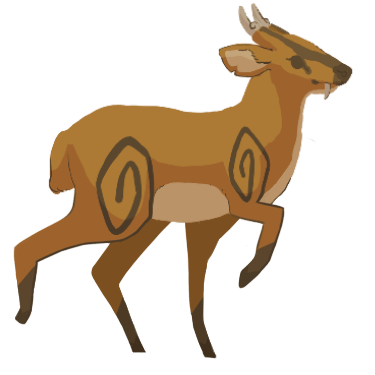
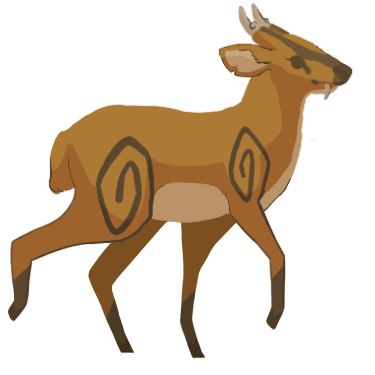
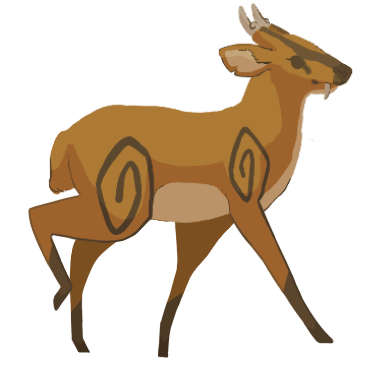
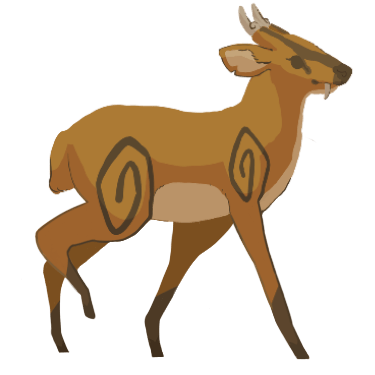
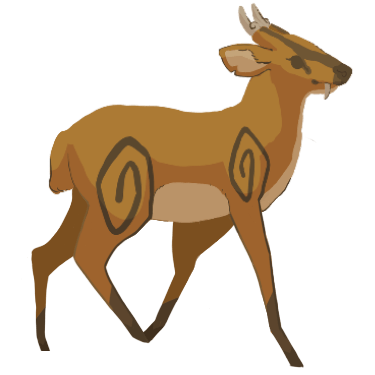
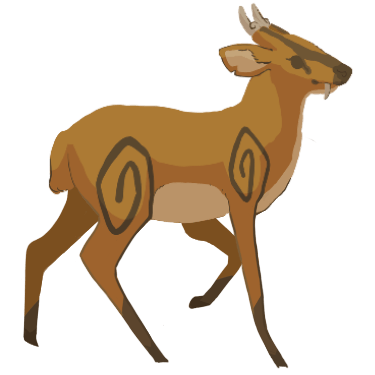
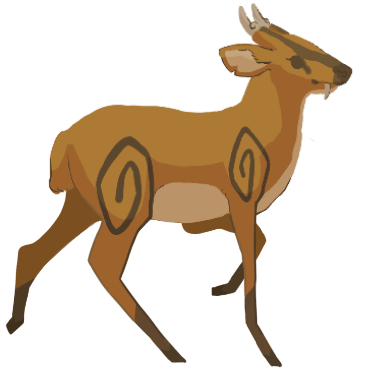

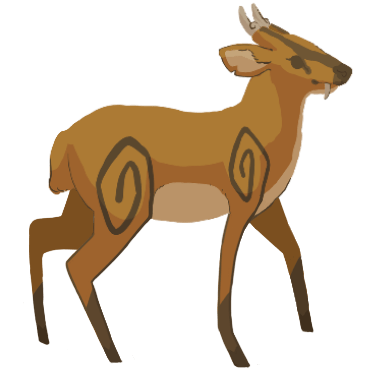
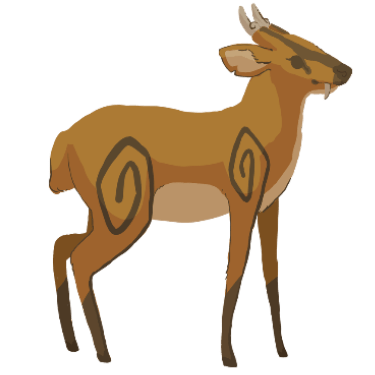
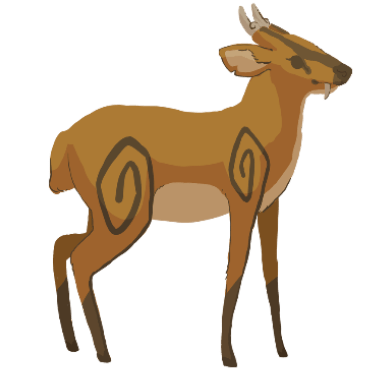
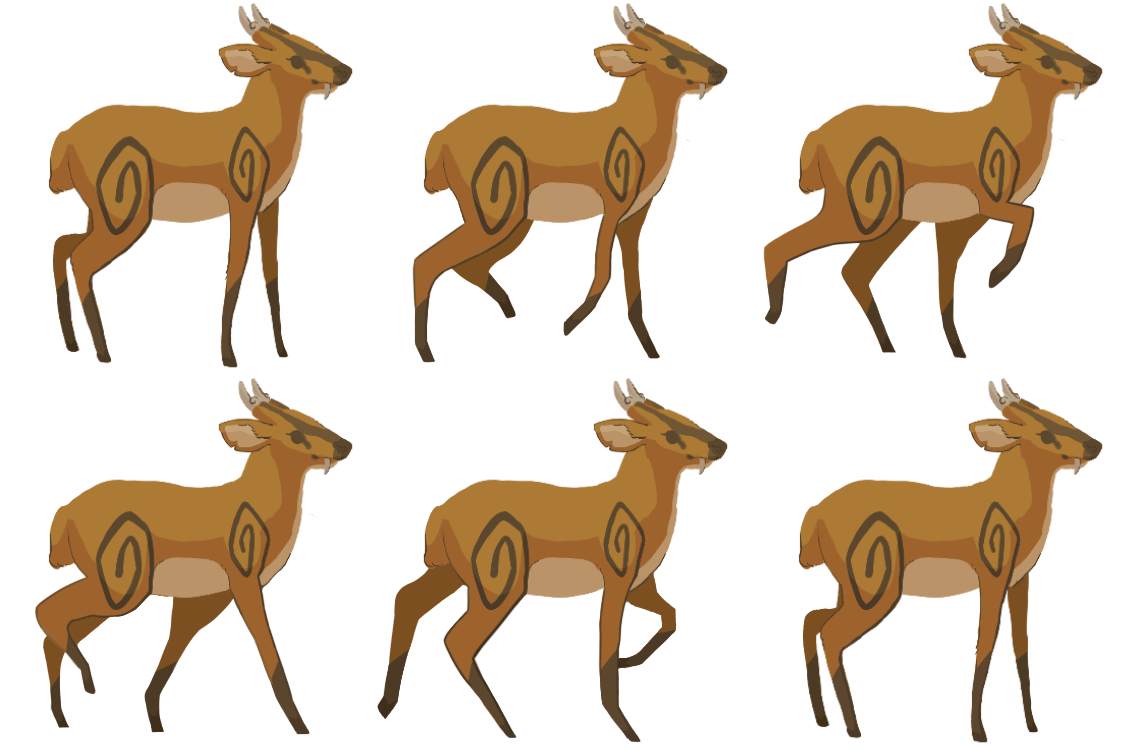
I found no issues with the new animation. Thus, I moved onto trying to create a more continuous walk loop by making the walk cycle occur for a longer amount of time before the deer stops. In order to achieve this, I played around with the order of the frames to try and make the walk cycle repeat thrice before stopping – thrice seemed like a good number for extending the deer’s walk time.
First, I removed the last frame and replaced it with a duplicate of the 2nd frame. Then, I duplicated frames 3-15 and placed them after the duplicated 2nd frame. Now, I had looped the walk cycle twice.
Next, I repeated frames 2-15. Now, I had looped the walk cycle thrice.
Finally, I placed the original last frame/frame 16 next and repeated the first frame twice. Shown below are the animation frames in this new order and the resulting GIF.
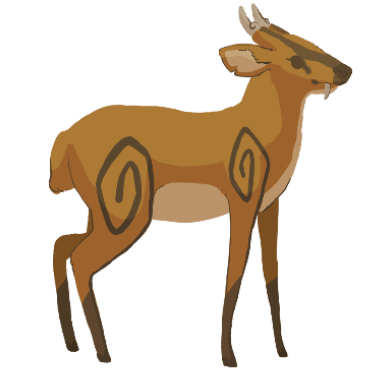
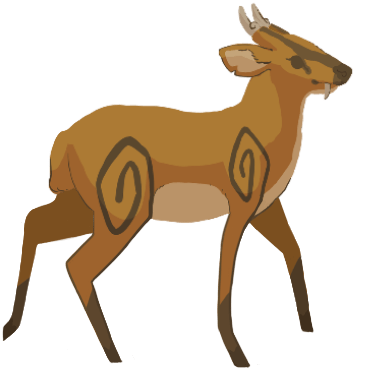
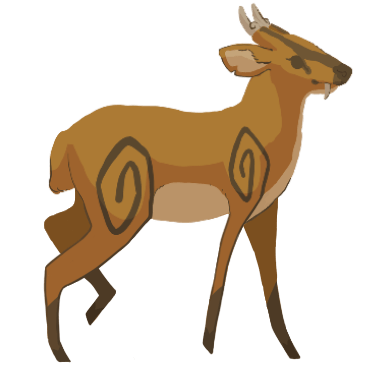
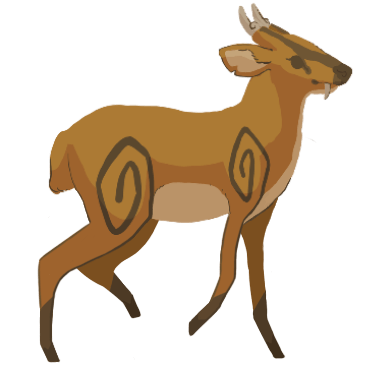
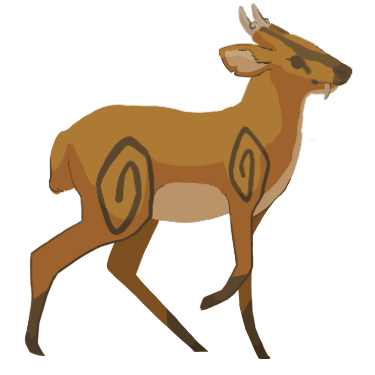
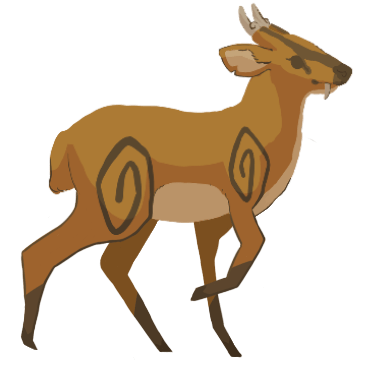

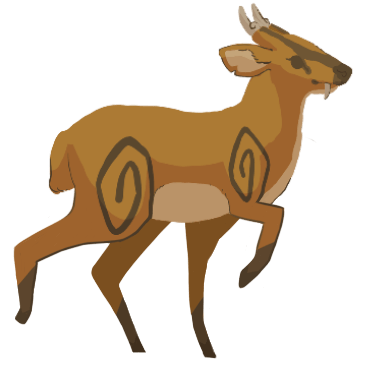
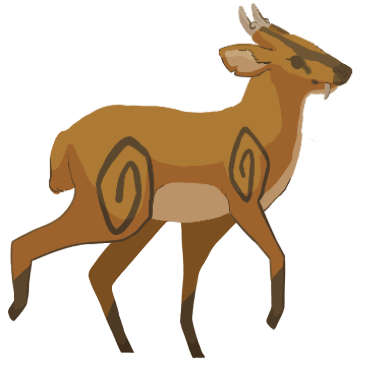
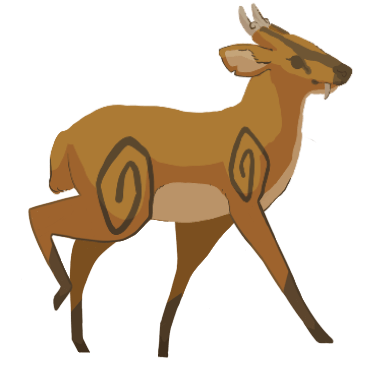
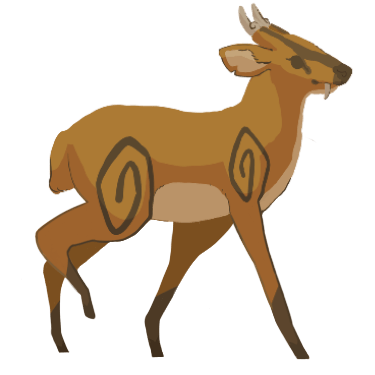
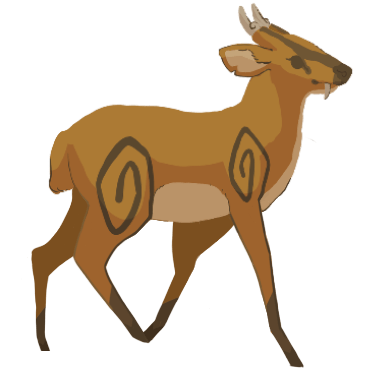
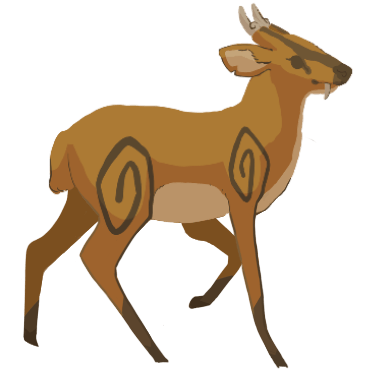
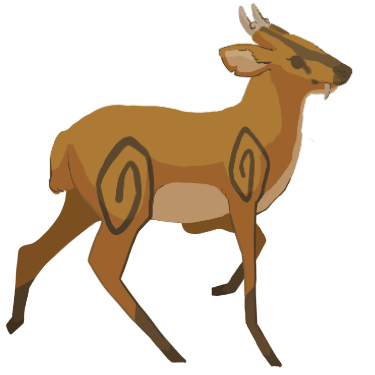
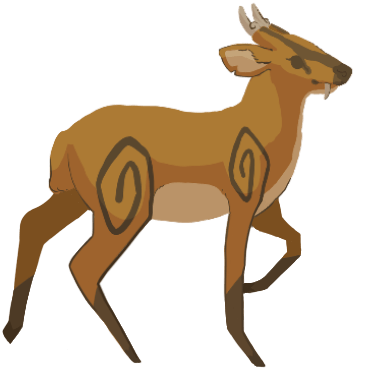
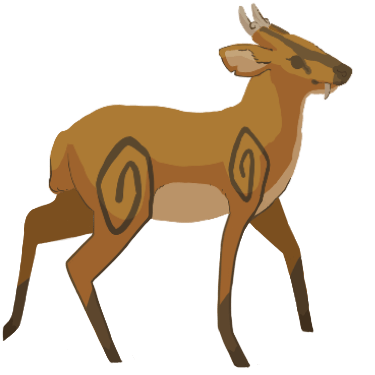
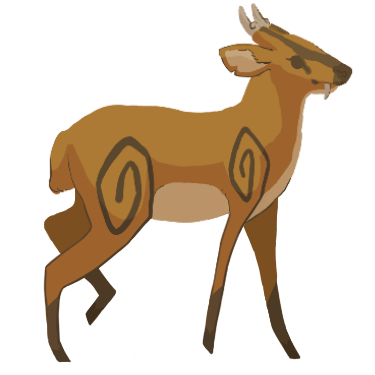
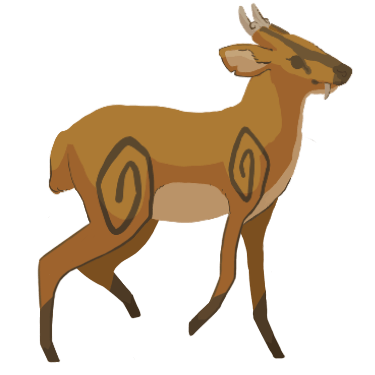
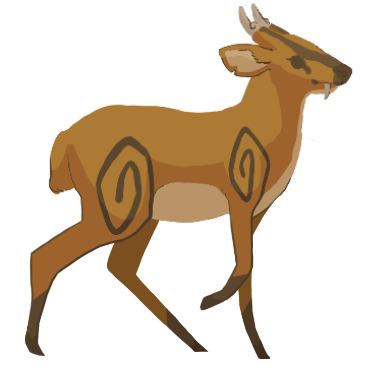
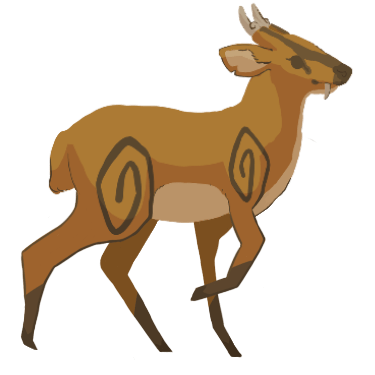
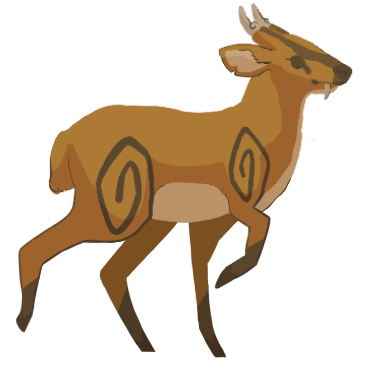
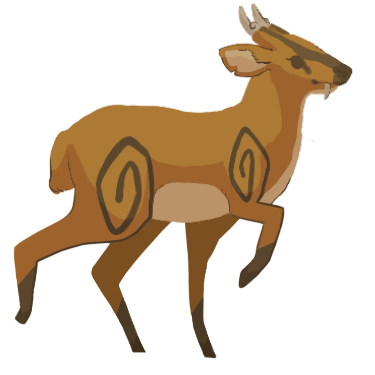
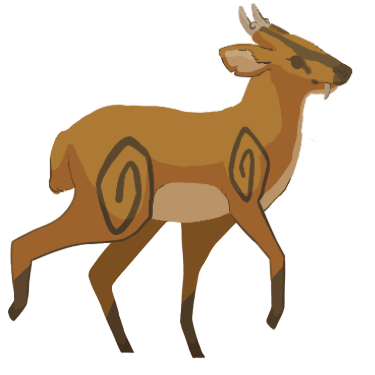

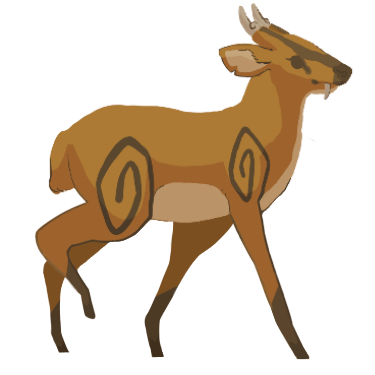
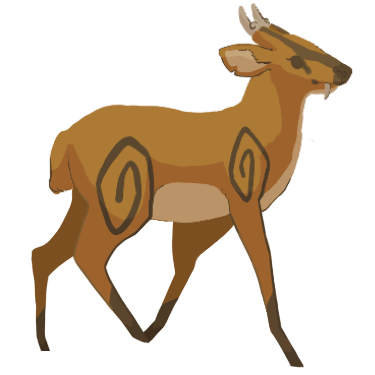
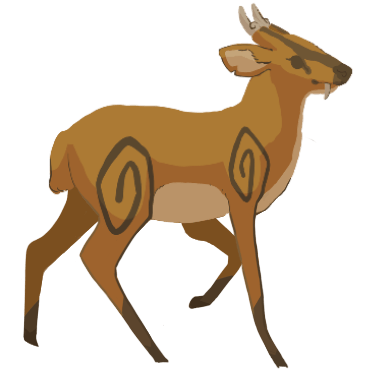
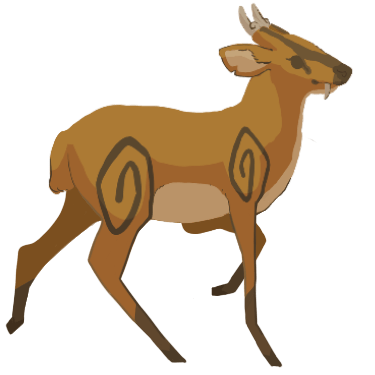
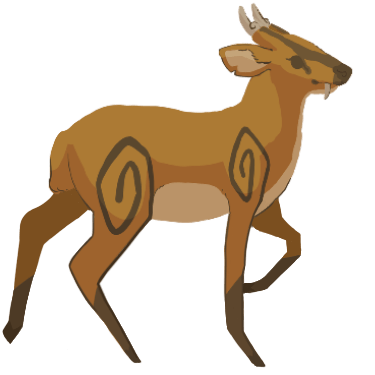
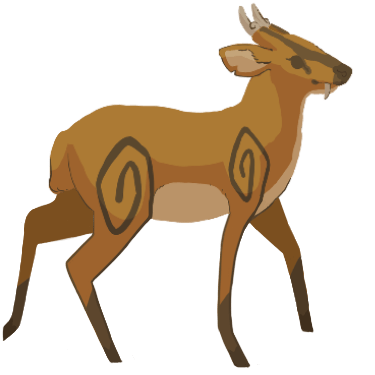
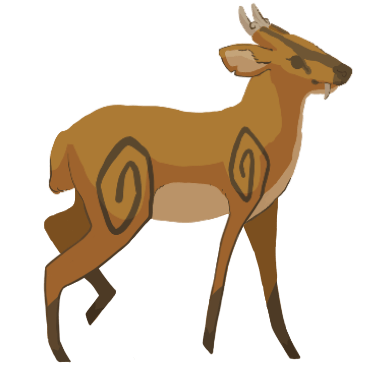
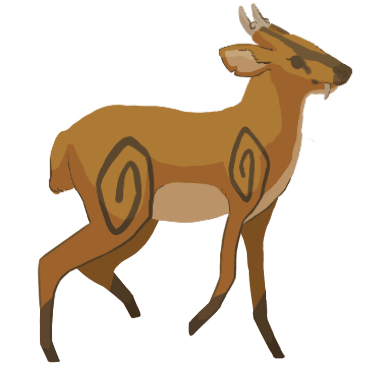
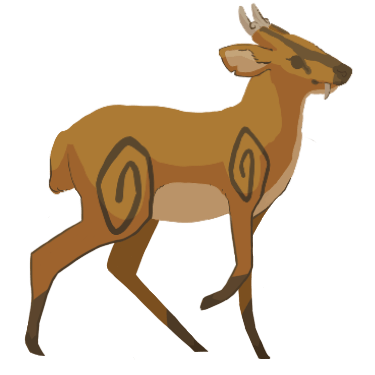
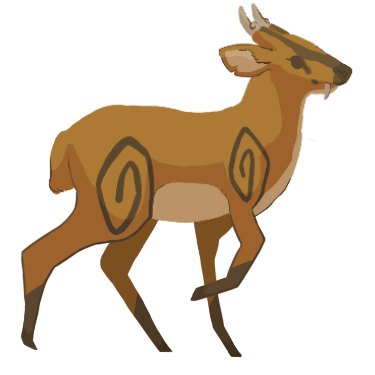
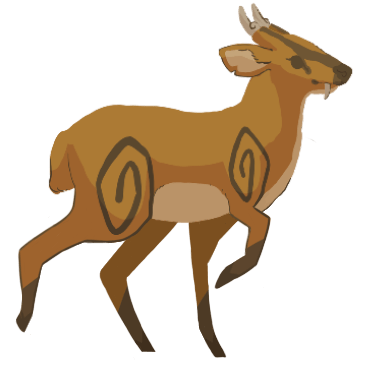
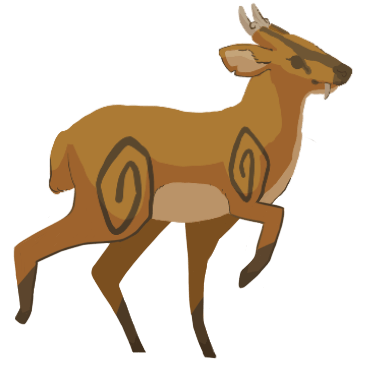
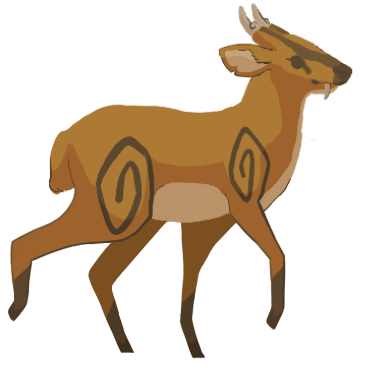
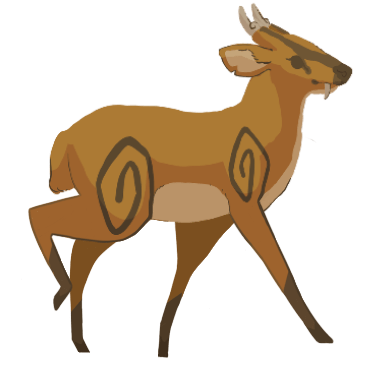
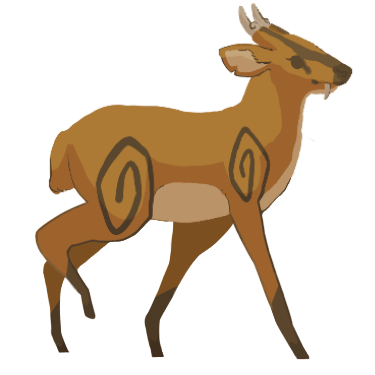
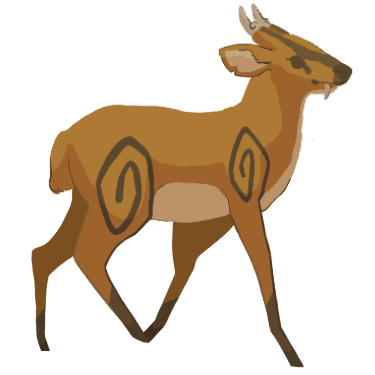
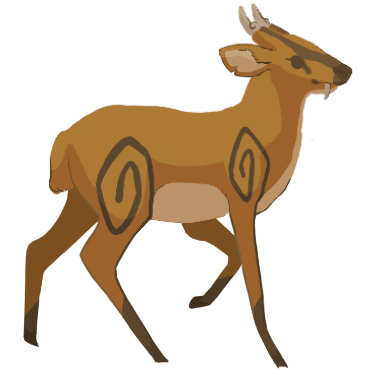
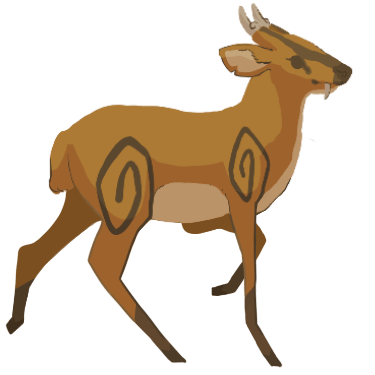
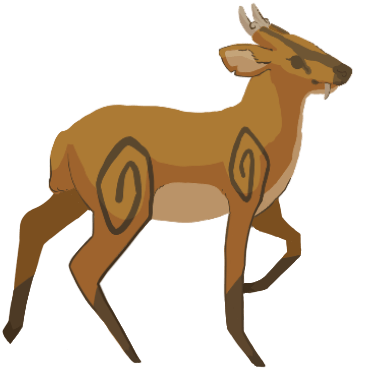
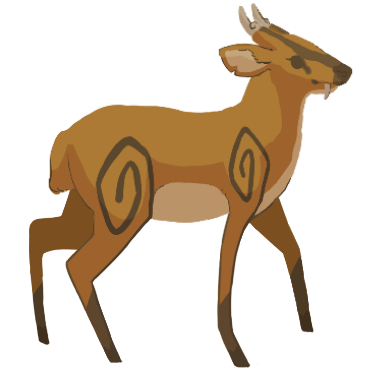
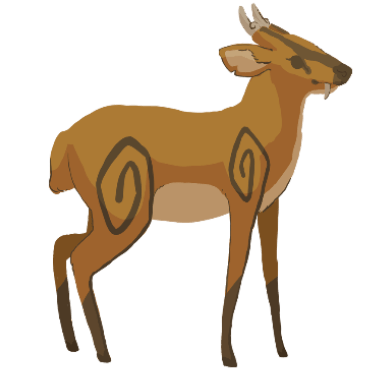
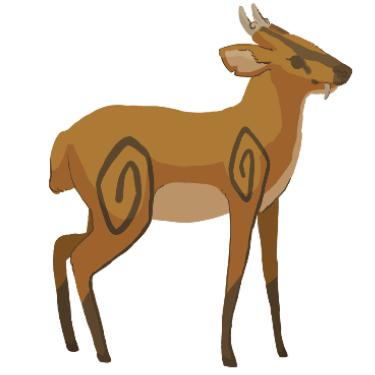
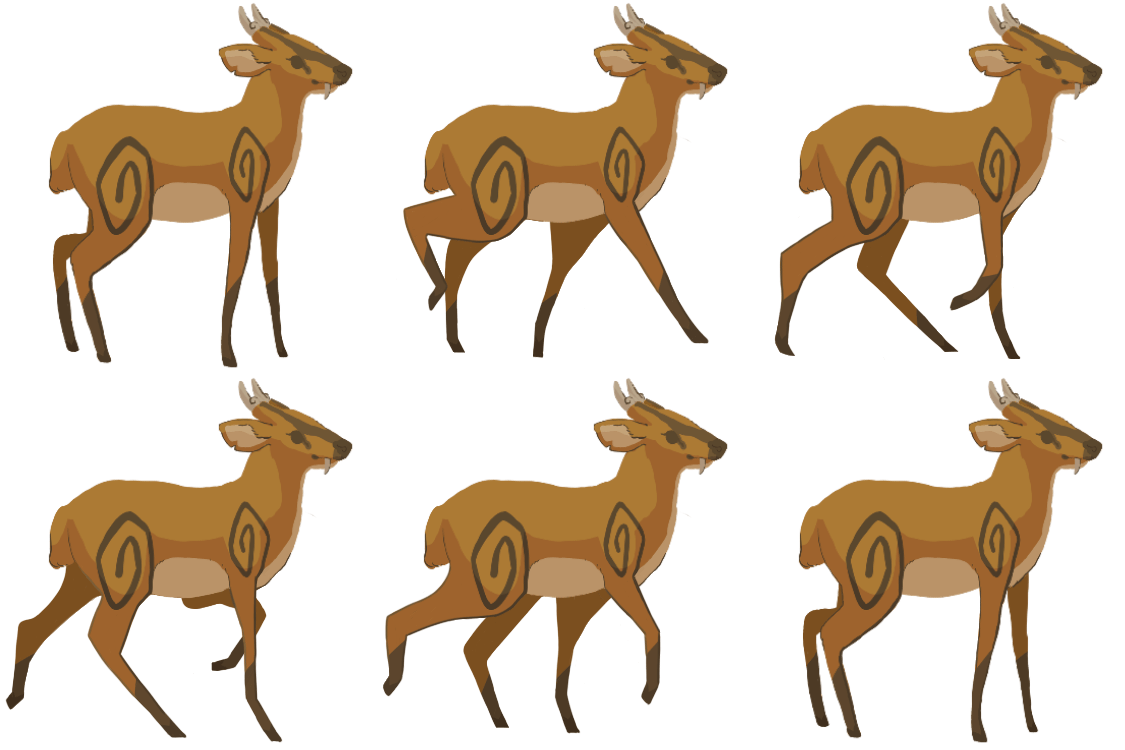
After presenting both the GIF showcasing one walk cycle and the GIF showcasing the walk cycle repeated thrice, I was complimented on them by the team. Bernardo then asked me to send the GIFs again but with transparent backgrounds. He also later asked me to create a walk loop that looped continuously without the deer stopping.
In regards to making the GIFs transparent, I went into Krita to try and make the GIFs transparent by making the white background invisible. However, when I rendered the animations, there was a red line that outlined in both GIFs. These red outlines only appeared in the rendered transparent GIFs – they didn’t appear in the non-transparent GIFs or the non-rendered animations in-program. They also didn’t appear when I rendered the transparent GIFs as videos, which I decided to try in order to test if the red outline also affected video-renders.

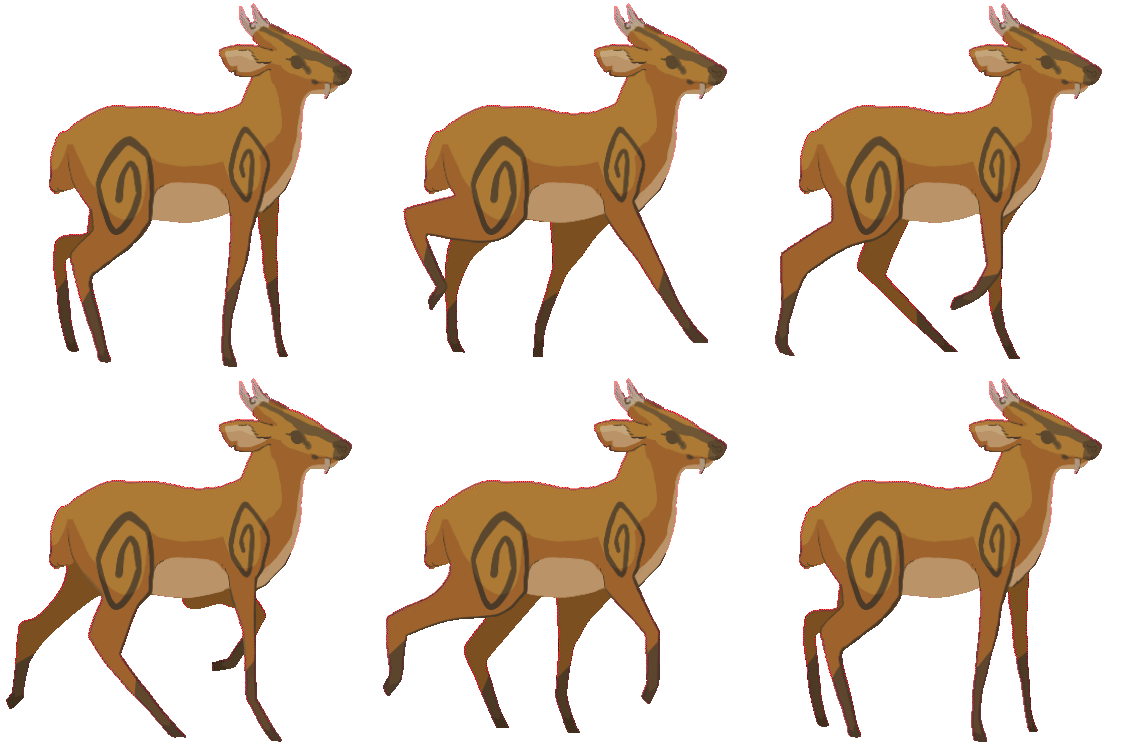
In order to try resolving this issue, I decide to try researching the internet for possible solutions but I couldn’t find any mentions of the issue. Thus, I tried searching for other free programs that could render GIFs but couldn’t find any. I then moved onto searching for websites that could render images as GIFs for free.
Eventually, I found this website: https://gifmaker.me/
Using this website, I succeeded in making the walking GIFs transparent. Firstly, I saved all the frames as transparent PNGs. Then, I uploaded them to the website and saved them as transparent GIFs.
Shown below are the transparent GIFs.
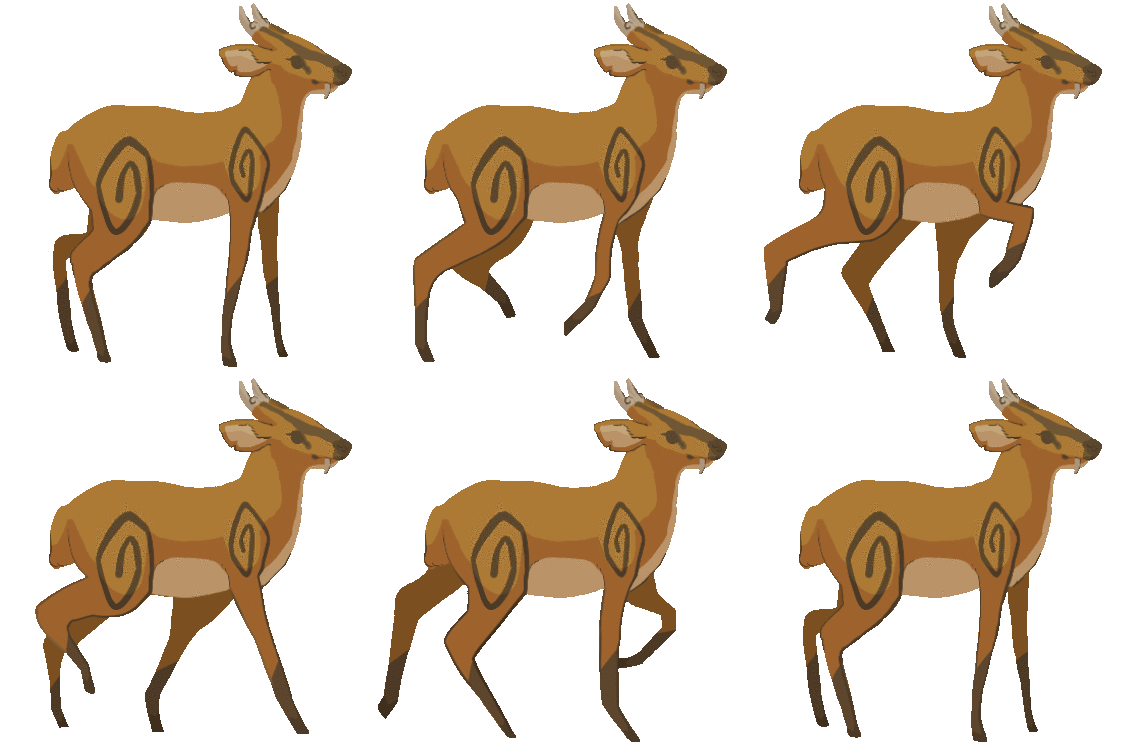
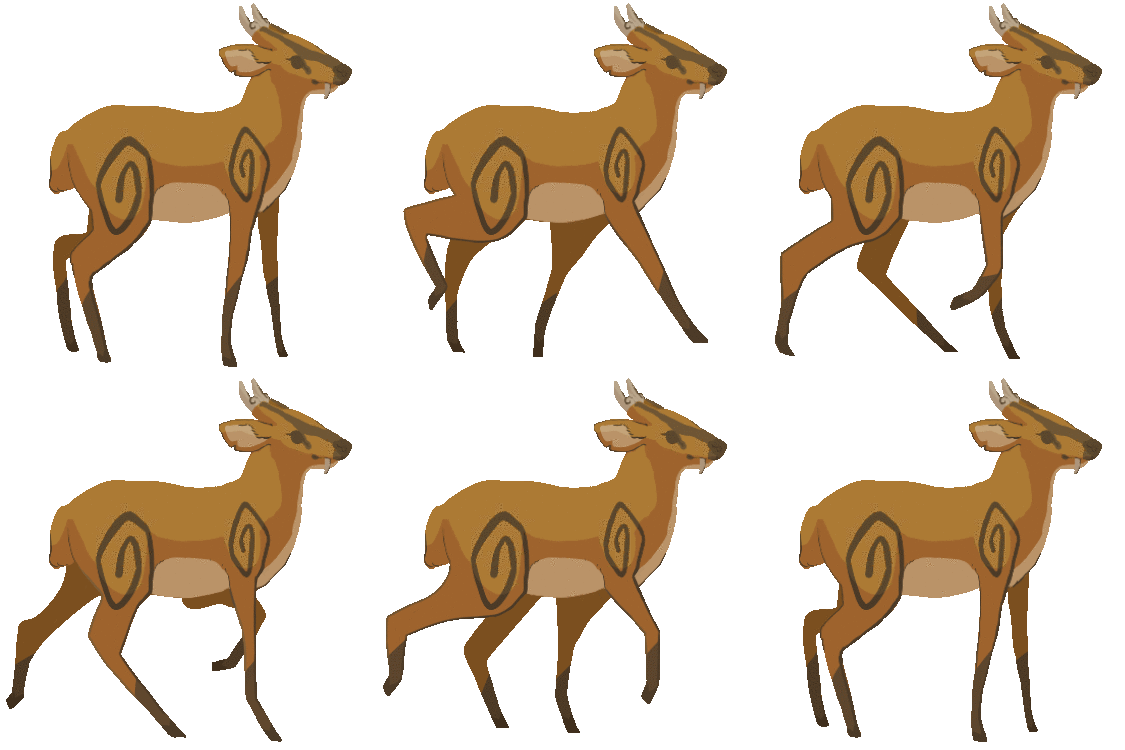
After finding a method of rendering transparent GIFs, I moved onto creating a continuous walk loop out of the animation frames by creating a new sequence out of them.
First, I removed the first frame. Then, I removed the last frame. This meant that only the original 14 frames I had created using the screenshots as reference remained. I knew these frames could loop continuously as I had experimented with them before. Shown below are the frames in their animation sequence order and the resulting GIF.
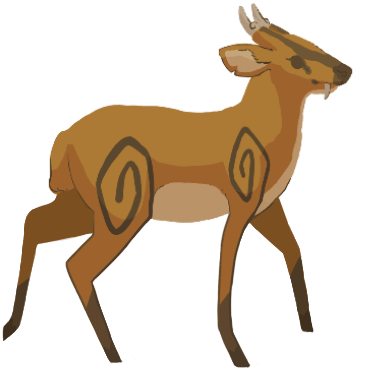
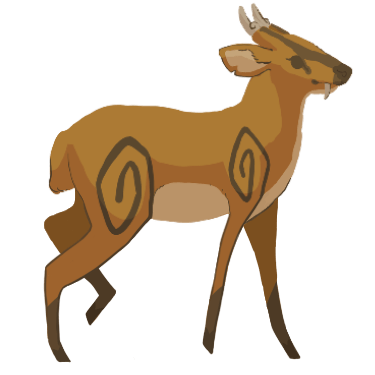
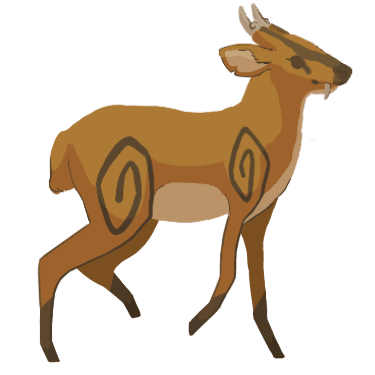
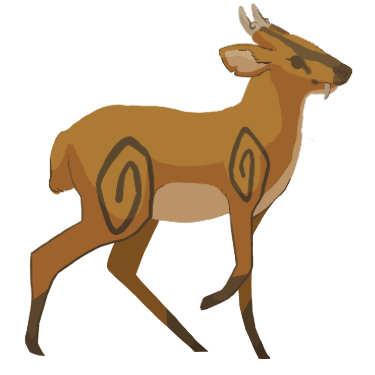
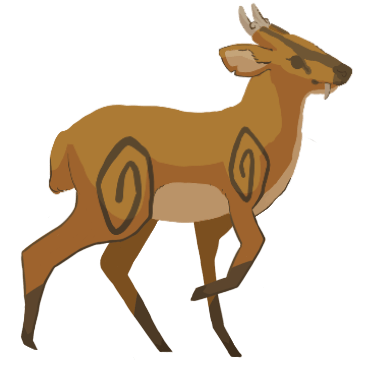
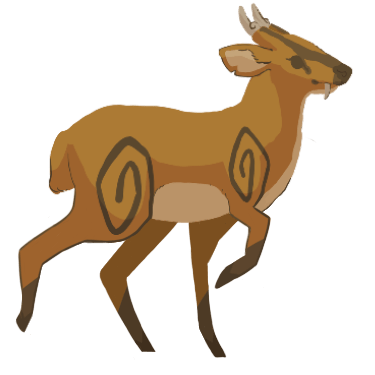
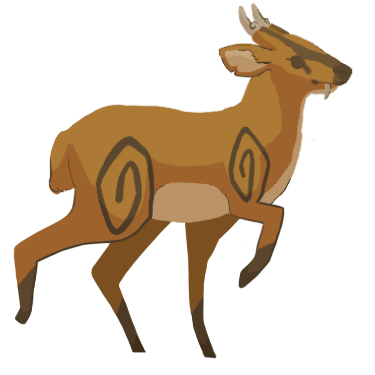
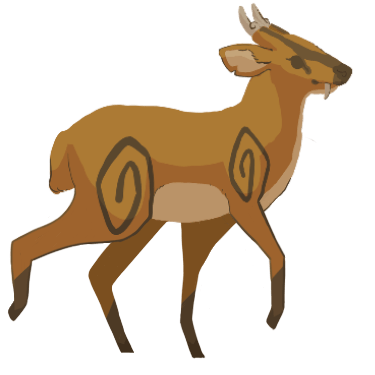
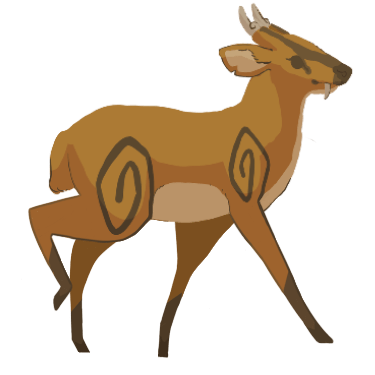
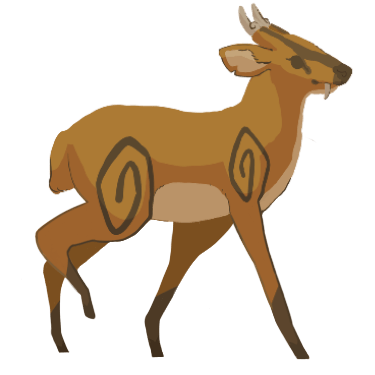
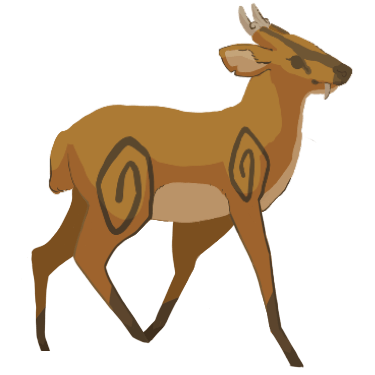
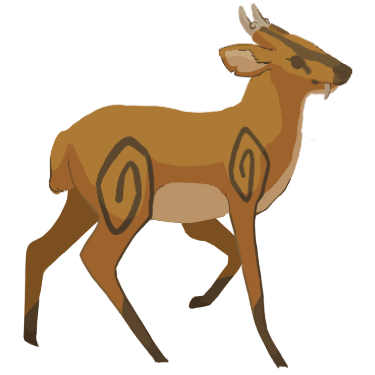
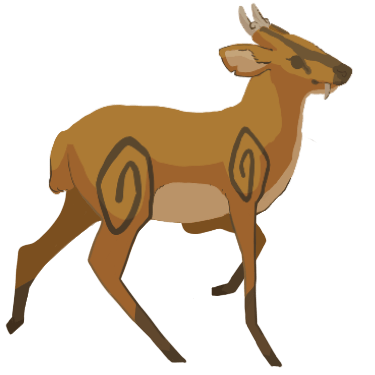
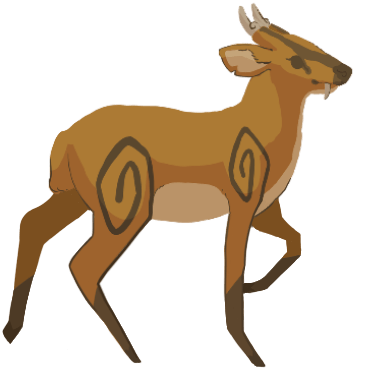
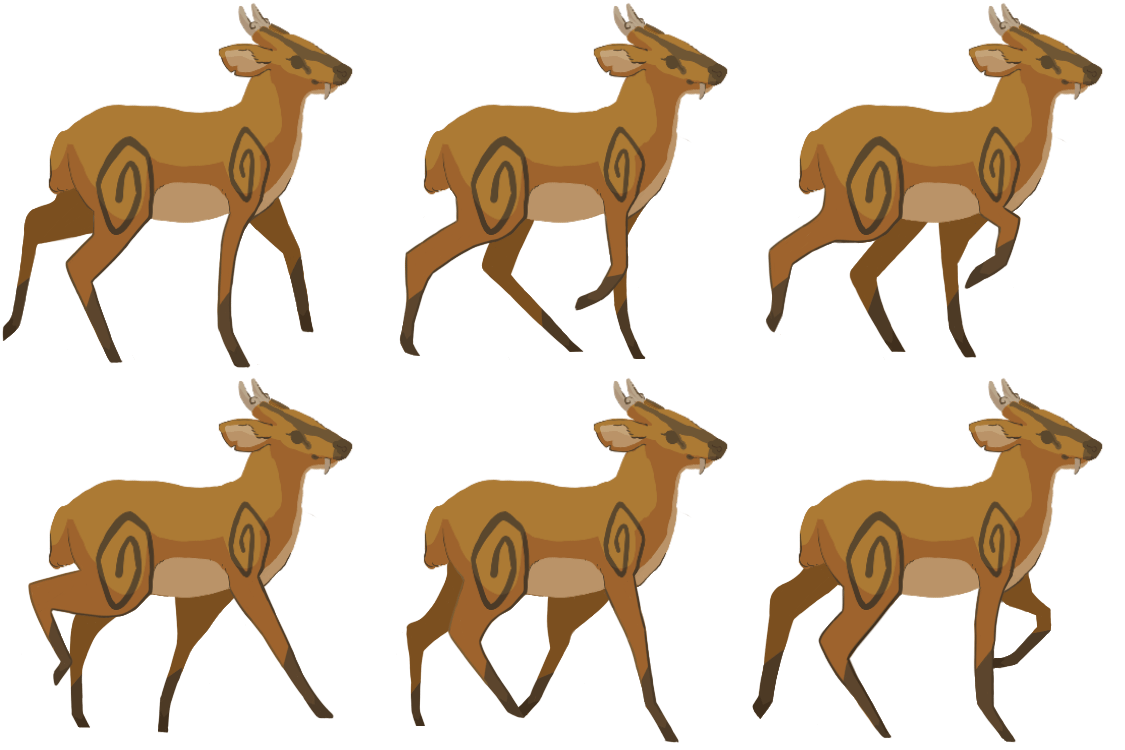
Finally, I used the website to render the frames as a transparent GIF. Shown below is the transparent GIF.
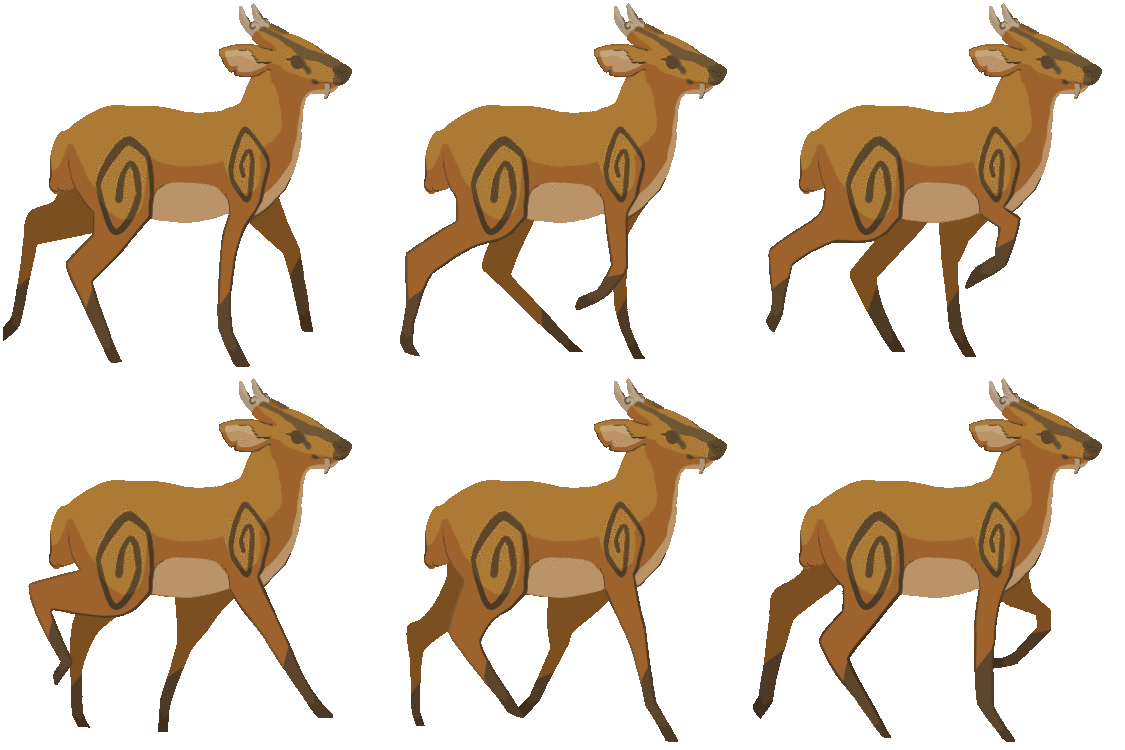
After sending the walk loop as a transparent GIF into Slack, it was well-received by Bernardo. However, later that day Bernardo told me that there was an issue with the GIF’s quality. It appears that the website had compressed the images during the rendering process.
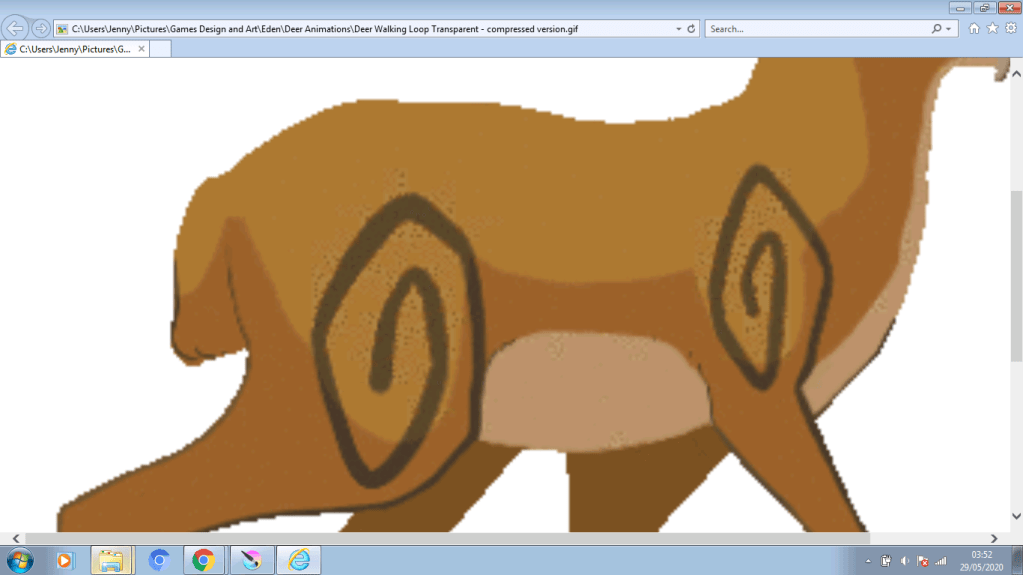
I checked the GIF’s quality myself by zooming in on it. I found that the quality was poor due to the website as I found no such issue with the GIFs I had rendered in Krita. Thus, we had a new issue to deal with. Eventually, I decided to solve the issue by sending the frames as transparent PNGs in Slack for the other team members to try rendering if they had a suitable program. However, Bernardo told me that he could just load the frames himself. Therefore, the problem was solved.
Animating the Deer Talking
Before drawing anything I had to decide the canvas resolution as there was no determined resolution for the deer’s talking animation. Eventually, I made the canvas 1280 x 1280. I decided to make the resolution fairly large so that it could easily be scaled down if needed. Scaling it up would be a more difficult task, which is why I chose a reasonably large resolution.
Firstly, I used the image of the deer standing from Shannon’s blog as a starting foundation.
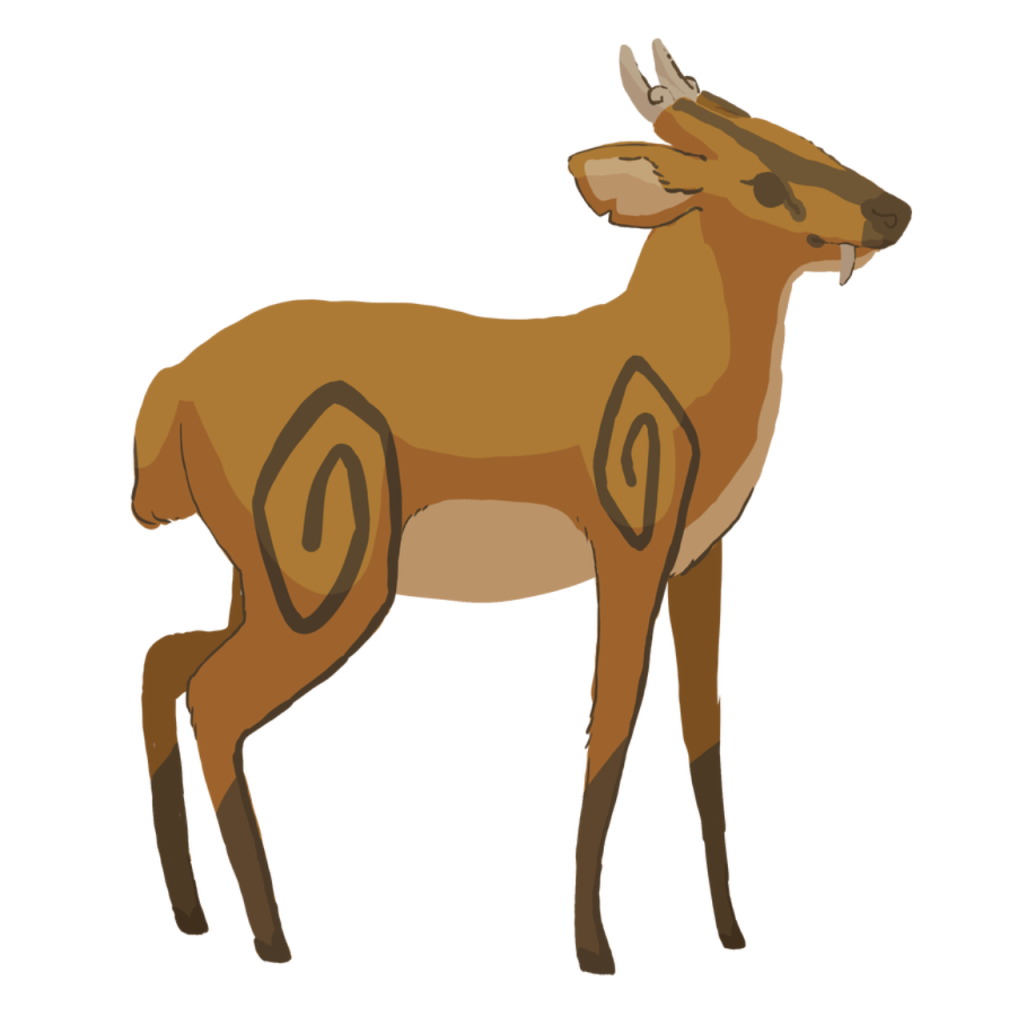
Next, I used the lasso tool to select the deer’s head. Then, I copy-and-pasted the head onto a new layer. I also made the original layer invisible.
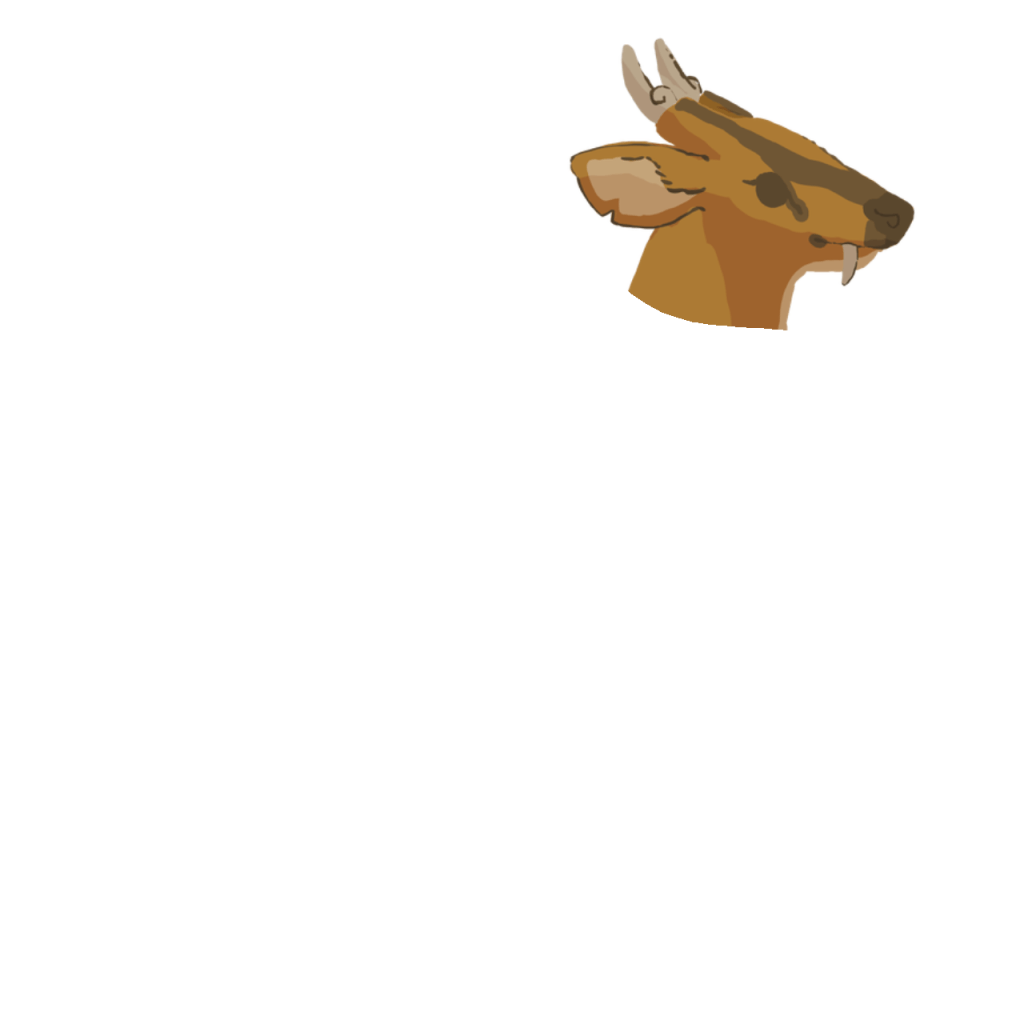
Next, I enlarged the head so that it filled more of the canvas.
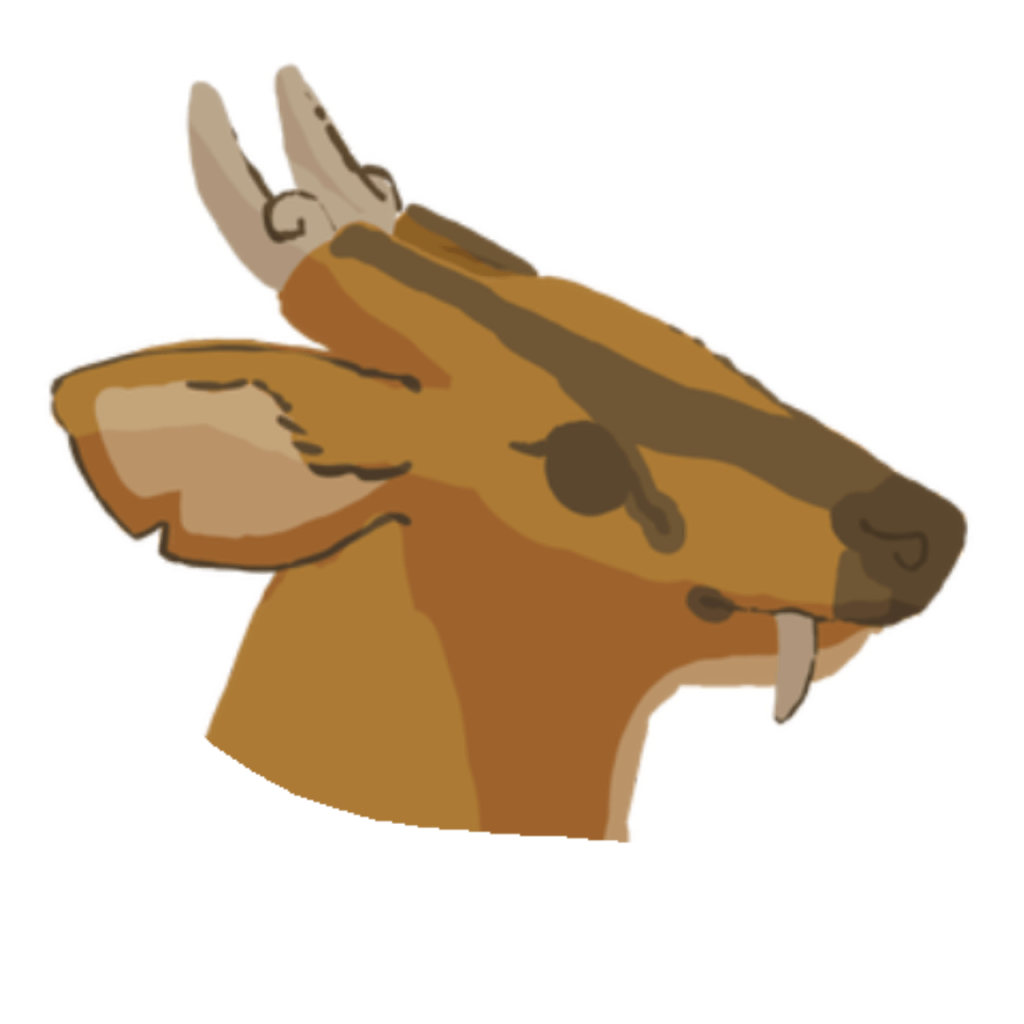
Then, I altered the head so that it appeared to face upwards and further ahead as opposed to the side.
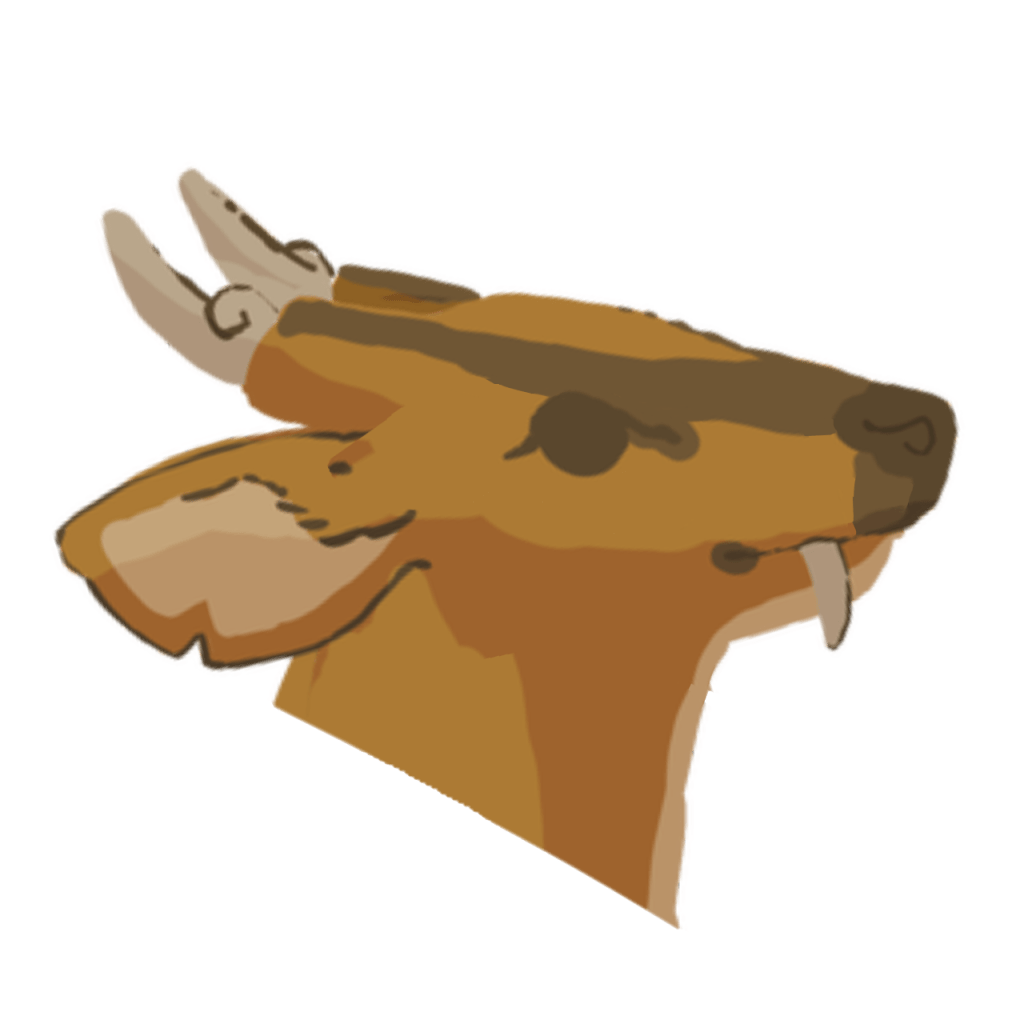
Now, I had my first animation frame. I then proceeded to create the second frame. I began by duplicating the first frame so that it could be used as a basis. Next, I altered the frame so that the mouth opened slightly.
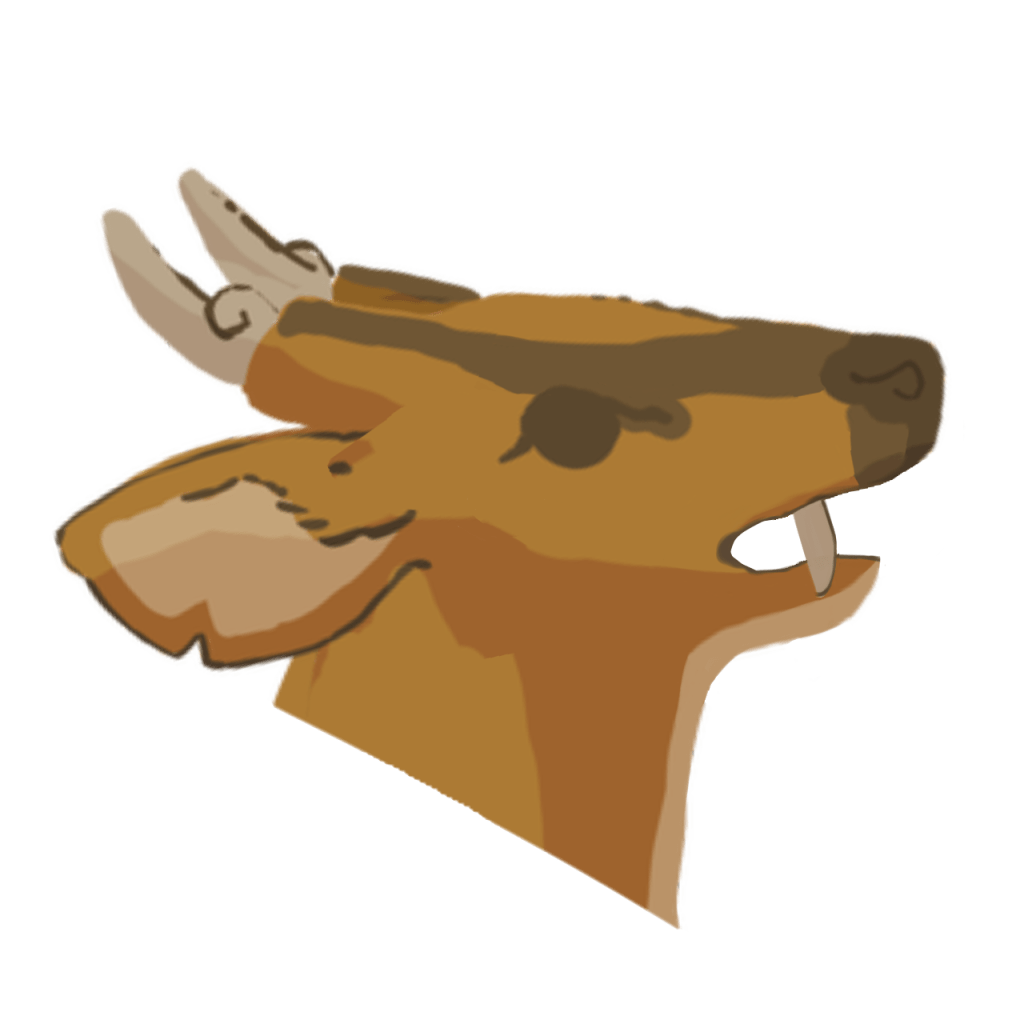
I decided to test out the frames by playing them as an animation. I changed the fps until I was satisfied with the speed. I ended up choosing a speed of 9 fps. Shown below is the animation as a GIF.
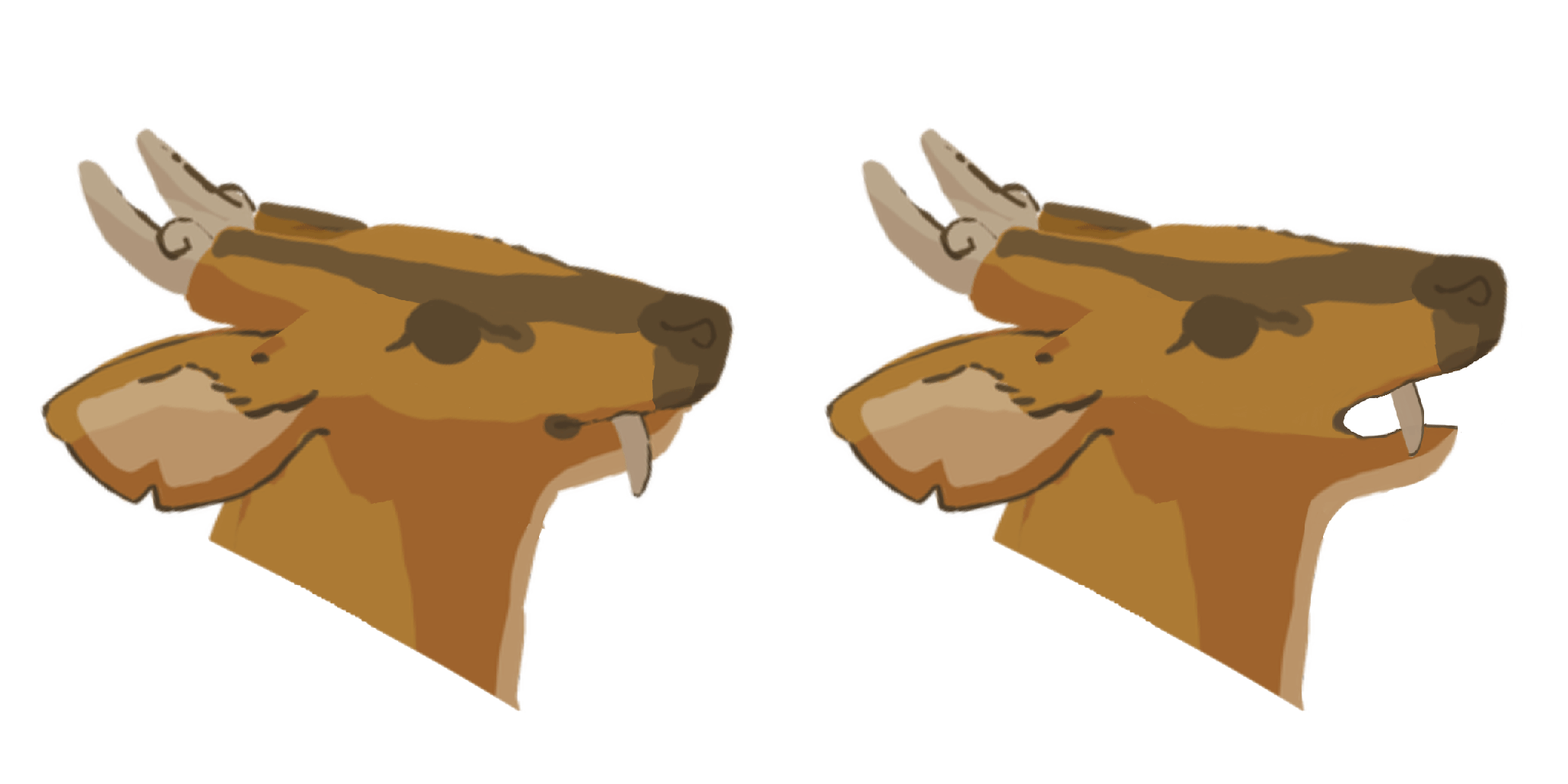
After observing the animation, I realised that there was an issue with the neck’s movement. The neck appeared to move strangely. I decided to scrutinise the frames again to see what had caused this issue. After doing so, I found that the first frame’s neck looked strange – it was slightly jagged at a certain point. I decided to fix this issue by redrawing part of the neck. Shown below is the altered frame.
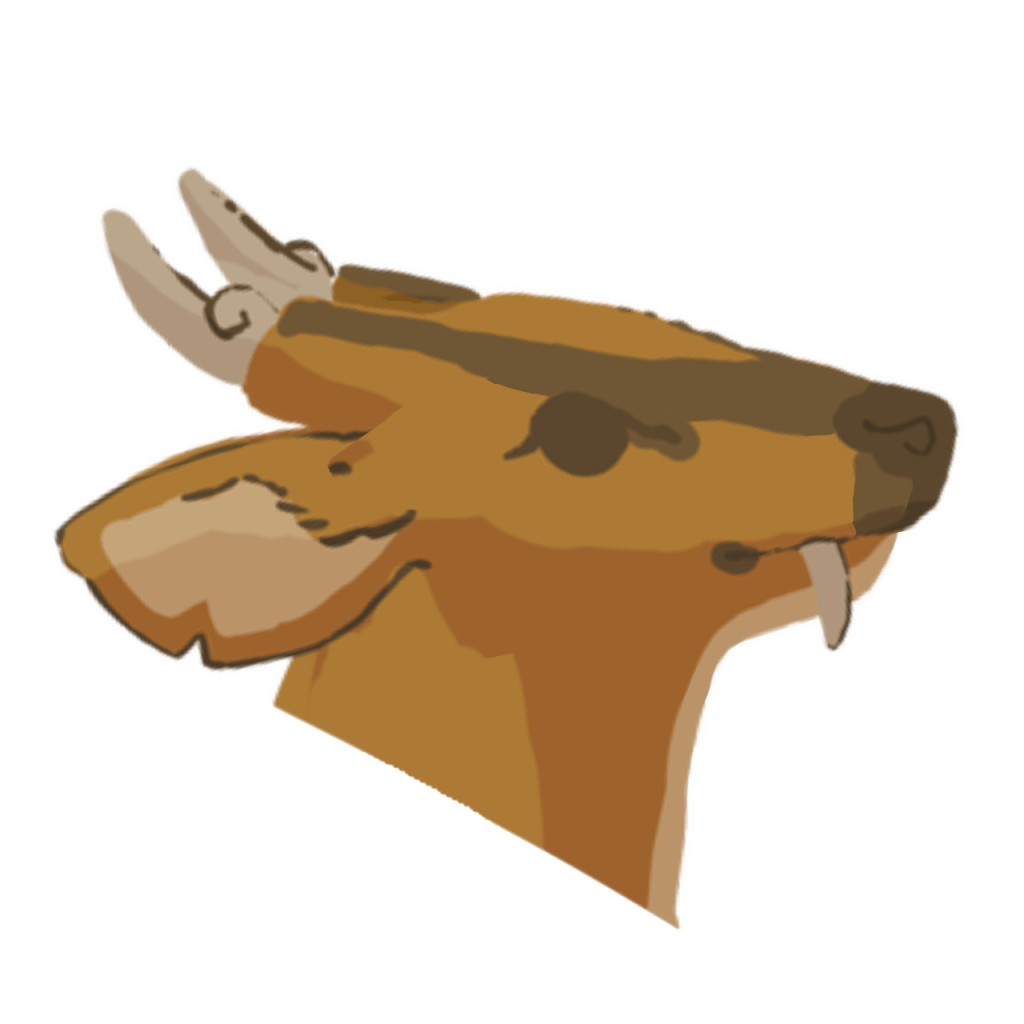
After fixing the first frame, I played them as an animation again to see if there were any further problems. Shown below is the animation GIF.
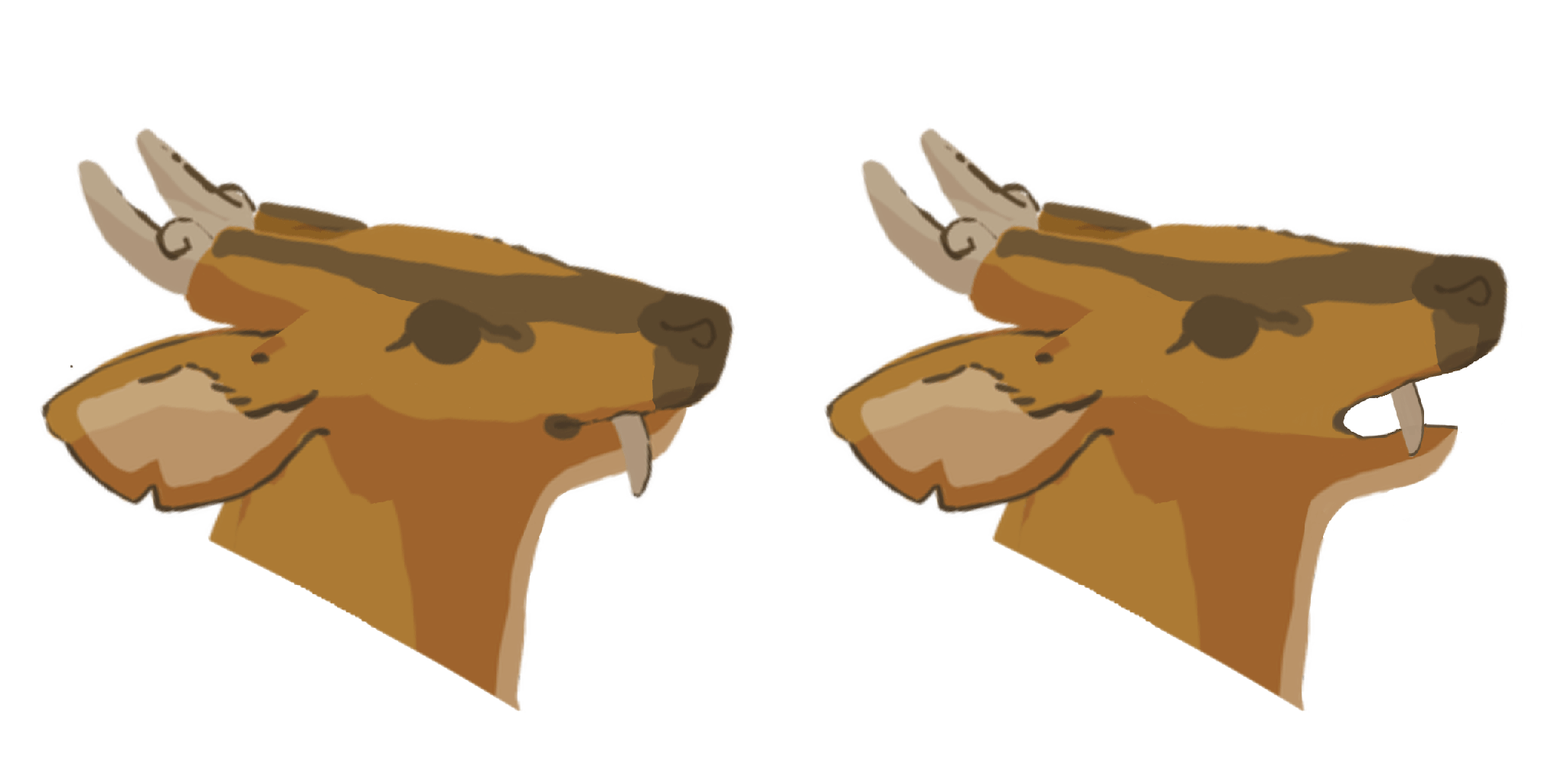
I found no further issues with the new animation so I proceeded to try rendering the GIF transparent in Krita. However, I encountered a peculiar issue after rendering the transparent GIF. The first frame refused to disappear throughout the animation. Shown below is the GIF.

This issue didn’t occur when I played the animation in-program so I was at a struggle as to finding out why this issue was occurring. I tried rendering the GIF on the website and encountered the same issue. I concluded that the issue laid in the frames themselves rather than the software rendering them. Therefore, I tried loading the second frame in a separate canvas and saving it as a transparent PNG before replacing the old frame with the new one. I then proceeded to try rendering the animation as a transparent GIF again on the website. It ended up working. I zoomed into the GIF to ensure that there were no problems with the quality of the GIF and found none. I concluded that perhaps it was due to the low resolution of the walking frames that caused the website to compress them.
Shown below is the deer talking transparent GIF.
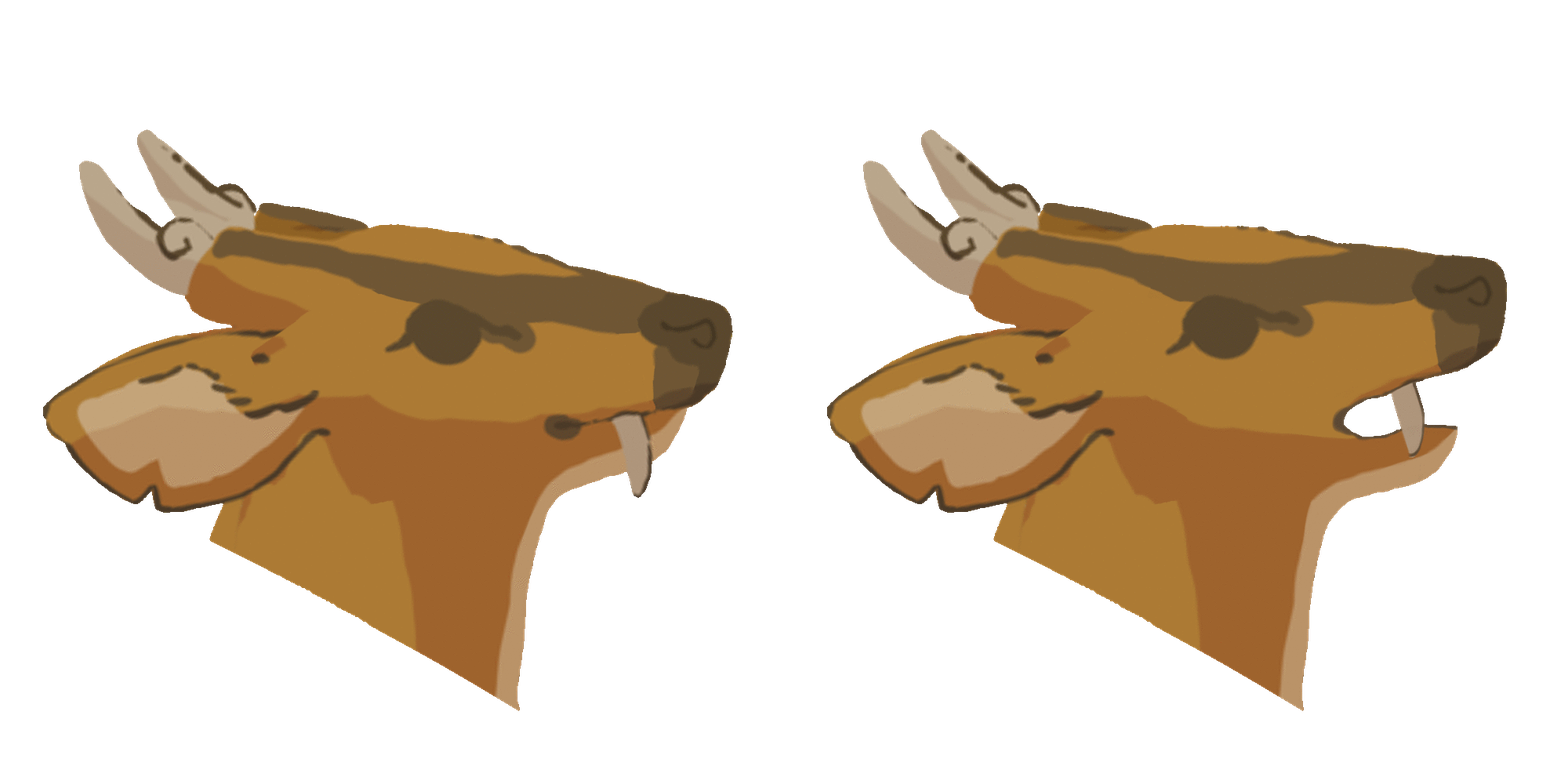
Finally, I sent the GIF in Slack and it was well-received.
 Eden: A Muntjac's Tale
Leave a comment